UsingRosetta
Work in Progress
1. What Is Rosetta?
Rosetta is the Translations component of Launchpad. The purpose of Rosetta is to make translating software from English to your preferred language an easy and non-technical process. All translations for Ubuntu are done through Rosetta, and many other projects also use it for their own translation work. A list of all projects using Rosetta for their translations can be found here. Keep in mind that not all projects may have the same translation policies. This lesson will focus on Ubuntu translations, although you will find that almost everything here is equally applicable for other projects.
2. How Does Rosetta Work?
Rosetta provides you, the translator, with a simple web interface. Behind this web interface are the numerous PO files that contain the translated strings for all software in Ubuntu. The format of a PO file is very simple, but fragile. A single misplaced quote can break the whole project! If you're interested, the PO file for Launchpad Integration in Canadian English is here. Rosetta hides this from translators so you can focus on high-quality translations, not making sure all your quotes are properly matched. Remember, Rosetta is supposed to provide you with a non-technical interface! As you enter each set of translations into Rosetta, they're saved in the proper format automatically.
3. How to Translate Using Rosetta
To begin contributing translations, all you need is a Launchpad account. This will allow you to contribute translation suggestions to any software package in any language. To go beyond suggestions and actually commit new translations to software packages, you will need to become a member of the appropriate localization team. Some, like the Tamil Translators, require approval to join. Others, like the English (Canada) Translators, are open for anyone to join without approval. Rosetta doesn't look any different for people who are members of a team compared to people who are not on a translation team. The only difference is that members of a team don't have to wait for their translations to be approved.
3.1. Finding the Right Translation Page
Now let's look at actually making a translation. To start, go to https://translations.edge.launchpad.net/ubuntu/jaunty/+lang/<language>, replacing <language> with the appropriate language code. You can find this code in two ways. The first way is to combine the ISO 639-1 language code and the ISO 3166 country code. Some languages, like English, have different regional variations which are only able to be represented as a language code in this manner. To form the region-specific language code, take the basic ISO 639-1 language code in lower-case, add an underscore (_) and then add the ISO 3166 language code in upper-case. As examples, American English is represented as en_US, Canadian English as en_CA, Canadian French as fr_CA, and Belgian French as fr_BE. The second way is for translating to the base language itself. Typically, the base language is the language as spoken in its primary country. English represented with a language code of en would be understood to be English as spoken in the United States, while the language code fr would be understood to be French as spoken in France. For the purposes of this article, the Canadian English translations for Jaunty will be used.
3.2. Choosing a Translation Package
Now that you have found the translation page for your language, you need to choose a template to begin translating. Translations considered more important are listed first in the list. The following image shows a sample of what the list of translatable packages looks like.
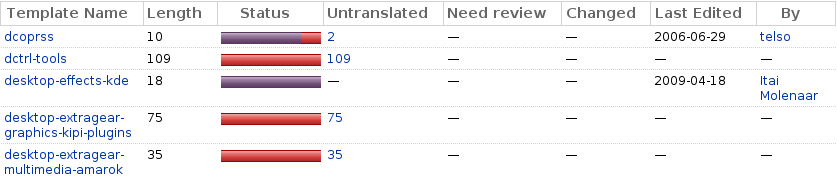
If you click on the name under the Template Name column, you will be brought to the entire translation, including already translated items. This is generally not as interesting as specific groupings within the translation - items not yet translated, items requiring a review, and items changed in Launchpad since the last export. The number of translations in each category are shown in the Untranslated, Need review and Changed columns, respectively. Clicking on a number will bring you directly to the specified translation. So, for example, if you clicked on the number 109 in the dctrl-tools row (keep in mind, if someone does more translation work on this template the number may be different; you're looking for the number under the Untranslated column) you'll only see the untranslated strings for the template. Clicking a number under the Need review column will show you only strings that have been flagged as needing a review by another translator. This includes strings translated by people who aren't members of the appropriate translation team. Finally, clicking a number under the Changed column will show you only strings which have had their translation changed in Launchpad since the last translation export.
JoelGoguen/UsingRosetta (last edited 2009-06-07 00:44:45 by CPE00226b519cb1-CM0014e8b576c2)