ISOTesting
|
Size: 3131
Comment:
|
Size: 7006
Comment:
|
| Deletions are marked like this. | Additions are marked like this. |
| Line 23: | Line 23: |
| {{attachment:qa.iso.ubuntu.com.png}} |
|
| Line 25: | Line 27: |
| To see the actual ISOs being tested, click on the milestone you want to test to get to the next page, where all of the ISOs are listed that are being tested for that milestone. | To see the actual ISOs being tested, click on the milestone you want to test to get to the next page. |
| Line 28: | Line 30: |
{{attachment:Product-UbuntuStudio.png}} |
|
| Line 36: | Line 40: |
| == Where are the testing instructions? == | {{attachment:upgrade-ubuntustudio.png}} |
| Line 38: | Line 42: |
| You should now be in the milestone page where all the products are listed. Click on one of the Ubuntu Studio products, like '''Ubuntu Studio amd64'''. This will take you to the testing page for the Ubuntu Studio amd64 ISO. | === Where are the testing instructions? === |
| Line 40: | Line 44: |
| You'll see the link '''Link to the download information''', which is where you go to download the ISOs. | Click on one of the Ubuntu Studio products, like '''Ubuntu Studio amd64'''. This will take you to the testing page for the Ubuntu Studio amd64 ISO. |
| Line 42: | Line 46: |
| You'll also see a table with test cases. Such as... | You'll see the link '''Link to the download information''', which is where you go to download the ISOs. You'll also see a table with test cases. You'll want to at least perform the ''mandatory'' test cases, but before we do that, we need to download the ISO. {{attachment:testcases.png}} === Downloading the ISO === Click on '''Link to the download information'''. You'll see a list of download types and links to them. We prefer using '''zsync'''. {{attachment:download-page.png}} '''zsync''' checks if the ISO has previously been downloaded, and if it has, it only downloads what was changed. You may need to download the same ISO a couple of times during testing, because of rebuilds, so this is where '''zsync''' becomes handy. To download using '''zsync''', you need to use the terminal. Create a folder for your ISOs, such as ~/iso, head to that dir, and then use zsync to download. Following commands do just that (replace the url to the ISO with the one you want to download, lines beginning with # are comments): {{{ # To make sure you are in home dir, cd to home root (~) cd ~ # Create the iso dir with mkdir mkdir iso # change directory to iso cd iso/ # zsync the file zsync http://cdimage.ubuntu.com/ubuntustudio/dvd/20150924/wily-dvd-amd64.iso.zsync }}} Every time you need to re-download the ISO, just open a terminal, cd into the iso dir, and zsync the file again. === checksum === Sometimes every bit is not correct in the file you downloaded, and that can result in installation failures. So, to make sure there's nothing wrong with the ISO, you need to do a checksum. On the download page, there's a link to a '''MD5 checksum'''. Click on it, and you'll see something like this: {{{ d9508ed2fbc20713f126e00530cbdc7e *wily-dvd-amd64.iso 01f20ed4850a56002735140eb04ec3e3 *wily-dvd-i386.iso }}} The above lines are the checksums to the two particular builds of Ubuntu Studio ISOs. You're checksums will be different. To get the checksum of the ISO you downloaded, use a terminal: {{{ # change directory to where the ISOs are located cd iso/ # get the md5 checksum md5sum wily-dvd-amd64.iso }}} Then compare the result you got with the checksum on the download page. If they are not identical, there is a problem with your ISO, and you'll need to re-download. === Create an Installer === Now that you have the ISO downloaded, you'll need to install it somehow. Either on a virtual machine, such as VirtualBox, or a real machine - which is much preferred. If you use a virtual machine, you don't need to create an installer. You can install directly from the ISO. There are many ways to create an installer. Burning a DVD is the simplest, but those are particularly error prone when it comes to OS installers. If one bit is wrong, it may result in an installation failure. USB installers are much preferred. There are numerous ways to create USB installers. The fastest is using the command line tool '''dd'''. Mount your USB stick, then make sure you know which drive letter it has (something like /dev/sdb, or /dev/sdc - most likely your system is installed on /dev/sda) - otherwise you risk overwriting the wrong drive, and that may end in tears! Once you know which drive letter your USB stick has, perform this command: {{{ sudo dd if=/path/to/wily-dvd-amd64.iso of=/dev/sdx }}} If your usb stick has the drive letter sdb, and the iso is located in /home/<username>/iso/, then the command would be (for the wily development release of Ubuntu Studio): {{{ sudo dd if=/home/<username>/iso/wily-dvd-amd64.iso of=/dev/sdb }}} It takes a few minutes. Once you see your prompt again, the process has finished, and you can try using the USB installer. === Performing a test === To perform a test, head back to testcases page: {{attachment:testcases.png}} ..and click on the test you'd like to perform, such as '''Install(entire disk)'''. You'll see a page like this: {{attachment:testcase.png}} |
| Line 45: | Line 126: |
| = What do we test? = | = Which releases do we test? = |



Testing ISO How To
See Testing/ISO for more thorough information regarding ISO testing.
Launchpad Account
In order to report results, you need a launchpad account. So, if you don't have one, head to http://launchpad.net, and create one!
Where the testing is done
qa.iso.ubuntu.com - this is where we find our test cases and where we report our results from testing the ISO. You need a launchpad account in order to login there.
The milestones (Alhpa, Beta, Release Candidate, Final Release)
If there is something to test, it will be listed under something equivalent to Milestones for Wily Series, and it's status will be marked Testing. We don't test the Daily Milestone, only actual releases, such as Final Beta, or Release Candidate.

The builds for product: Ubuntu Studio
To see the actual ISOs being tested, click on the milestone you want to test to get to the next page.
Ubuntu Studio ISOs are listen under Product(Ubuntu Studio). You can see some information about the tests there, already. How many mandatory tests there are, and how many of them are completed. Also, the date fo the last build, under Version.

Even if all tests are completed, you should still test if you are able. This way we get more machines involved with more possible bugs that can be reported.
Upgrade Tests
Ubuntu Studio ISOs are also listed under product(Upgrade), which is where you test upgrading from the previous release to the current development release. These tests are currently less of a priority to us, but you may also test these if you like.

Where are the testing instructions?
Click on one of the Ubuntu Studio products, like Ubuntu Studio amd64. This will take you to the testing page for the Ubuntu Studio amd64 ISO.
You'll see the link Link to the download information, which is where you go to download the ISOs. You'll also see a table with test cases. You'll want to at least perform the mandatory test cases, but before we do that, we need to download the ISO.

Downloading the ISO
Click on Link to the download information. You'll see a list of download types and links to them. We prefer using zsync.

zsync checks if the ISO has previously been downloaded, and if it has, it only downloads what was changed. You may need to download the same ISO a couple of times during testing, because of rebuilds, so this is where zsync becomes handy.
To download using zsync, you need to use the terminal. Create a folder for your ISOs, such as ~/iso, head to that dir, and then use zsync to download. Following commands do just that (replace the url to the ISO with the one you want to download, lines beginning with # are comments):
  # To make sure you are in home dir, cd to home root (~)
  cd ~
  # Create the iso dir with mkdir
  mkdir iso
  # change directory to iso
  cd iso/
  # zsync the file
  zsync http://cdimage.ubuntu.com/ubuntustudio/dvd/20150924/wily-dvd-amd64.iso.zsync
Every time you need to re-download the ISO, just open a terminal, cd into the iso dir, and zsync the file again.
checksum
Sometimes every bit is not correct in the file you downloaded, and that can result in installation failures. So, to make sure there's nothing wrong with the ISO, you need to do a checksum. On the download page, there's a link to a MD5 checksum. Click on it, and you'll see something like this:
  d9508ed2fbc20713f126e00530cbdc7e *wily-dvd-amd64.iso
  01f20ed4850a56002735140eb04ec3e3 *wily-dvd-i386.iso
The above lines are the checksums to the two particular builds of Ubuntu Studio ISOs. You're checksums will be different.
To get the checksum of the ISO you downloaded, use a terminal:
  # change directory to where the ISOs are located
  cd iso/
  # get the md5 checksum
  md5sum wily-dvd-amd64.iso
Then compare the result you got with the checksum on the download page. If they are not identical, there is a problem with your ISO, and you'll need to re-download.
Create an Installer
Now that you have the ISO downloaded, you'll need to install it somehow. Either on a virtual machine, such as VirtualBox, or a real machine - which is much preferred. If you use a virtual machine, you don't need to create an installer. You can install directly from the ISO.
There are many ways to create an installer. Burning a DVD is the simplest, but those are particularly error prone when it comes to OS installers. If one bit is wrong, it may result in an installation failure. USB installers are much preferred.
There are numerous ways to create USB installers. The fastest is using the command line tool dd. Mount your USB stick, then make sure you know which drive letter it has (something like /dev/sdb, or /dev/sdc - most likely your system is installed on /dev/sda) - otherwise you risk overwriting the wrong drive, and that may end in tears! Once you know which drive letter your USB stick has, perform this command:
sudo dd if=/path/to/wily-dvd-amd64.iso of=/dev/sdx
If your usb stick has the drive letter sdb, and the iso is located in /home/<username>/iso/, then the command would be (for the wily development release of Ubuntu Studio):
sudo dd if=/home/<username>/iso/wily-dvd-amd64.iso of=/dev/sdb
It takes a few minutes. Once you see your prompt again, the process has finished, and you can try using the USB installer.
Performing a test
To perform a test, head back to testcases page:
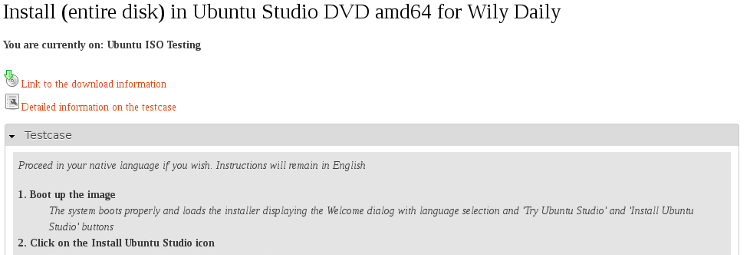
..and click on the test you'd like to perform, such as Install(entire disk). You'll see a page like this:
Which releases do we test?
An ISO is tested just before it is released, always on a Thursday. These are the possible ISO releases during a development period (releases marked as opt-in are not obligatory for flavors):
Release |
Description |
Alpha 1(opt-in) |
About four months before FinalRelease |
Alpha 2(opt-in) |
About three months before FinalRelease |
Beta 1(opt-in) |
About two months before FinalRelease |
Final Beta |
About a month before FinalRelease. |
About a week before FinalRelease, but this is not a specific release - more of a testing period up until FinalRelease. |
|
Released either during October or April |
UbuntuStudio/Testing/ISOTesting (last edited 2016-09-22 15:42:05 by sakrecoer)