GnomeUserInterface
|
Size: 6650
Comment: prepare for attachments
|
← Revision 38 as of 2008-08-06 16:19:54 ⇥
Size: 13206
Comment: converted to 1.6 markup
|
| Deletions are marked like this. | Additions are marked like this. |
| Line 4: | Line 4: |
| * '''Launchpad Entry''': https://launchpad.net/distros/ubuntu/+spec/ue-gnome-ui * '''Created''': [[Date(2005-10-31T16:34:49Z)]] by JaneWeideman * '''Contributors''': JaneWeideman, ColinWatson, MatthewPaulThomas * '''Packages affected''': `ubuntu-express` |
* '''Launchpad Entry:''' https://launchpad.net/distros/ubuntu/+spec/ue-gnome-ui * '''Created:''' <<Date(2005-10-31T16:34:49Z)>> by JaneWeideman * '''Contributors:''' JaneWeideman, ColinWatson, MatthewPaulThomas * '''Packages affected:''' `ubuntu-express` |
| Line 11: | Line 11: |
| The UbuntuExpress installer interface appears as a window on the live CD desktop. It asks for language, keymap, your name, computer name, login name, password, timezone and location, and partitioning details. The interface is written in Python, invoking backend routines to act on your choices. | The UbuntuExpress installer appears as a window on the live CD desktop. It asks for your language, keyboard layout, name, login name, password, location and timezone, and partitioning details. The interface is written in Python, invoking backend routines to act on your choices. |
| Line 15: | Line 15: |
| == Use cases == | The current installer is ugly and confusing, especially in the partitioning stage. We want people to be amazed at how easy and pleasant the Ubuntu installation experience is. We also want them to be able to get work done while Ubuntu is installing. |
| Line 19: | Line 19: |
| Since we'll be doing a Qt-based interface as well for KubuntuExpress, the user interface must be cleanly separated from the functional installer backend. The [http://interactors.coop/~trunks/installer/ Guadalinex installer] already does this quite well, but both the front end and the back end need significant work to meet our requirements. | Since we'll be doing a Qt-based interface as well for KubuntuExpress, the user interface must be cleanly separated from the functional installer backend. The [[http://www.guadalinex.org/|Guadalinex installer]] already does this quite well, but both the front end and the back end need significant work to meet our requirements. |
| Line 23: | Line 23: |
| Installation experience is theater. The installer must wow reviewers, and give everyone a good impression of the system they are installing. |
|
| Line 27: | Line 25: |
| The Live CD desktop shall contain an "Install Ubuntu Permanently" icon, consisting of an arrow overlaid on the Ubuntu logo. If there are any other icons on the desktop, the installation icon shall be the last one. | The Live CD desktop contains an "Install Ubuntu Permanently" icon, consisting of an arrow overlaid on the Ubuntu logo. If there are any other icons on the desktop, the installer icon is the last one. |
| Line 29: | Line 27: |
| attachment:overall.jpg | {{attachment:overall.jpg}} |
| Line 33: | Line 31: |
| === Welcome to the Ubuntu installer === | At the bottom right of the window is a pair of equal-sized buttons, "◀ Back" (text left-aligned, activated by Alt+Left) and "Next ▶" (text right-aligned, activated by Enter or Alt+Right). At the first step, "◀ Back" is replaced by "Cancel" (text centered, with no icon, activated by Escape); at the last step, "Next ▶" is replaced by "Install" (text centered, with no icon, activated by Enter). These wording changes do not cause the buttons to jump about; they are wide enough for either wording at all times. |
| Line 35: | Line 33: |
| The first page of the installer lets you choose your language. On x86, this defaults to the language choice that was made in the bootloader; otherwise, it defaults to English. It also displays a welcome message and explanatory blurb in the selected language (which eliminates the appearance of wasting time if you ''did'' choose the appropriate language in the bootloader). | === Accessibility === |
| Line 37: | Line 35: |
| attachment:language.jpg | Ensuring that the Live CD boot process and Ubuntu Express is accessible will enable users with disabilities to independently install and configure Ubuntu. Most of the work is actually done in gfxboot to provide an accessible Live CD session surrounding Ubuntu Express itself. For details see: [[UbuntuExpress/Accessibility]]. |
| Line 39: | Line 37: |
| Ready to install Ubuntu? Once you answer a few questions, Ubuntu can be installed on this computer so you can run the system at full speed and without the CD. | === Welcome === |
| Line 41: | Line 39: |
| Answering the questions should take about five minutes. | The first page of the installer lets you choose your preferred language, for the installation itself and for your Ubuntu account. On architectures where language selection is available in the boot loader, this defaults to that language; otherwise, it defaults to US English. This page also displays a welcome message and explanatory blurb in the selected language; the message is updated live as the selection changes. (This eliminates the appearance of wasting time if you ''did'' choose the appropriate language in the bootloader.) |
| Line 43: | Line 41: |
| ''Future work: "To use accessibility features while installing, press the Space key now."'' | {{attachment:language.jpg}} |
| Line 47: | Line 45: |
| attachment:keymap.jpg | The next step is asking for the keyboard layout; the selected layout applies both to the rest of the installer (so that answers to later questions can be typed successfully), and to the login screen of the system itself once it is installed. The default choice is the most likely keymap for the selected language. |
| Line 49: | Line 47: |
| The next step is asking for the keymap, so that answers to later questions can be typed successfully. | '''''If there is time:''' When the list appears, it is scrolled so that the default choice is as close as possible to the middle of the listbox.'' {{attachment:keyboard.jpg}} {{attachment:keyboard-guess.jpg}} |
| Line 53: | Line 55: |
| attachment:personal.jpg | {{attachment:personal.jpg}} |
| Line 55: | Line 57: |
| * What is your name? | Until it is changed manually, the login name field is constantly updated to be equal to the first word in the person's name, converted to lower case and cropped if necessary to the maximum number of characters allowed. When the person first changes the field manually, it stops dynamically updating. |
| Line 57: | Line 59: |
| * What login name would you like? This is the name you will use when logging in to Ubuntu. If more than one person will use this computer, you can set up other accounts later. |
If "Next ▶" is activated while one or more of the fields have impossible values, no alert appears. Instead, errors are indicated next to the relevant fields with a mini red error icon ⊝ and a brief description of the error, and the first errant field should be focused (for mismatching passwords, this means the first password field). For example: [ ] ⊝ You must enter a name.<<BR>> [ ] ⊝ You must enter a login name.<<BR>> [••••••• ][•••••• ] ⊝ Passwords must match. |
| Line 60: | Line 64: |
| The name defaults to the first word of the person's name, converted to lower case. | '''''If there is time:''' The name and login name fields actively prevent invalid values, by ignoring impossible characters, and by ignoring further entry in the login name field if if already contains 16 characters. The password field is more passive, reporting errors next to the field but not preventing them; otherwise people may not notice the prevention, and may think they have entered a password different from the one that was accepted.'' |
| Line 62: | Line 66: |
| * Choose a password (enter twice) | '''''If there is time:''' If a password is entered that is too short, is found in a dictionary, or is easily derived from the real name or login name, this is indicated using a mini warning icon and brief warning text ("Too short." or "Too obvious.") next to the password fields, as soon as focus leaves the ''first'' password field. These warnings do not prevent you from continuing, and they are subordinate to the "Passwords must match." error message.'' |
| Line 64: | Line 68: |
| ''Future work: "Who will be using this computer?" -- multiple names at once, to encourage use of individual accounts.'' === Computer name === attachment:computer-name.jpg * What name would you like to give your computer? This name will be used if you make your computer visible to others on a network. This defaults to the hostname from DHCP/DNS if available, otherwise "ubuntu". Initially, the field is restricted to ASCII characters. The name is used as-is for Avahi configuration, and a normalized version is used as the hostname. The hostname has spaces converted to dashes, and other punctuation stripped; this conversion is presented live during the input. ''Future work: Provide some way of letting people enter the hostname manually.'' |
'''''Future work:''' "Who will be using this computer?" -- multiple names at once, to encourage use of individual accounts.'' |
| Line 81: | Line 72: |
| attachment:location.jpg | {{attachment:location.jpg}} <<BR>> ''The "Time zone:" value should be text, not an option menu as shown in this mockup.'' |
| Line 83: | Line 75: |
| * Choose the city nearest to you, for timezone * map (Can we just highlight the country/timezone boundries on mouseover so you deon't select a city but a whole region? Lets try to avoid precision clicking. I would even prefer a dropdown for timezone to this. We could even suggest a time zone if an ntp server can be reached based off of their computer's clock.) |
At a minimum, the map functions identically to that in the "Time zone" dialog of Gnome's "Time and Date" control panel. |
| Line 86: | Line 77: |
| * List of country-like entities (used for suggesting default keymaps, currencies, etc) | '''''If there is time:''' (for both the installer, and the "Time and Date" control panel itself)'' * ''The map does not zoom in. The zooming is disconcerting, it's not particularly useful, and it's hard to work out how to zoom out again.'' * ''Selecting a place in a particular timezone highlights the whole area of the world that shares that timezone.'' * ''The map behaves like a single-selection listbox: mousing down highlights the selected timezone (and update the values of the controls underneath), and dragging continues visibly changing the selection.'' |
| Line 88: | Line 82: |
| * allows faster software updates -- closer mirrors. ''If time: Highlight the entire timezone on the map.'' |
Making a selection from the map causes the "Nearest city:" and the "Time zone:" values to update. Making a selection from the "Nearest city:" combo box causes the map and the "Time zone:" value to update. |
| Line 96: | Line 88: |
| ''Future work: Let people transfer non-dot files and fonts from the home folder.'' | '''''Future work:''' Let people transfer (non-dot?) files from their home folder.'' === Ready to install === {{attachment:ready.jpg}} The final page summarizes the information entered in the previous steps, in a text box from which it can be copied for printing/e-mailing/etc. This box is hidden by default using an expander control. Clicking "Install" closes the installer window, and opens a separate progress window. |
| Line 100: | Line 100: |
| attachment:progress-demo.jpg | The progress window contains a single progress bar that fills up only once. Partitioning is allocated 10% of the size of the progress bar; this may be tweaked if it is either too much or too little for most systems. |
| Line 102: | Line 102: |
| A ''single'' progress bar should be displayed at the end. | During installation of language packs, and ''only'' during that stage, a "Skip" button is present next to that text. This lets people avoid installing the language packs, without requiring a question to be answered about them. |
| Line 104: | Line 104: |
| TBD: Work out how to allow cancelling installation of language packs. ( Skip ) | {{attachment:progress-demo.jpg}} |
| Line 106: | Line 106: |
| Show some sort of demo (Flash v3?) during the installation progress. Put this in an expander (expanded by default), so people can see just the progress if they want. | '''Future work:''' An animated demo of Ubuntu's benefits is shown during the installation process, à la Windows 95. The demo is in a section with an expander (expanded by default), so it can be collapsed for people who want to see just the progress. |
| Line 108: | Line 108: |
| attachment:progress.jpg | {{attachment:progress.jpg}} |
| Line 114: | Line 114: |
| I believe that both issues can be solved by borrowing infrastructure from [:OEMInstaller:oem-config], where I had to address similar problems and did so using a debconf protocol filter: debconf-using code (e.g. installer code) can be run unmodified inside a wrapper that runs custom user interface code rather than a standard debconf frontend, and translated strings can be extracted directly from the debconf database. -- ColinWatson | I believe that both issues can be solved by borrowing infrastructure from [[OEMInstaller|oem-config]], where I had to address similar problems and did so using a debconf protocol filter: debconf-using code (e.g. installer code) can be run unmodified inside a wrapper that runs custom user interface code rather than a standard debconf frontend, and translated strings can be extracted directly from the debconf database. -- ColinWatson |
| Line 122: | Line 122: |
| === Data preservation and migration === | == Discussion == |
| Line 124: | Line 124: |
| == Outstanding issues == | It has been decided ''not'' to include a page asking for the computer name in the installer, for several reasons. * UbuntuExpress is for installing a desktop, not a server. For a desktop, the hostname from DHCP/DNS if available -- and "''Name of Person''’s Computer" otherwise -- is a reasonable default, [[http://rfc.net/rfc1178.html|RFC 1178]] notwithstanding. * Ubuntu no longer ships an MTA by default, making renaming the computer (the primary concern of RFC 1178) much less painful. * Gnome's "Network Preferences" allow the computer to be renamed, making renaming even less painful. If this does not change the hostname everywhere it should, that is a bug that should be fixed. * Choosing a custom name is the slowest part of the installer (since people spend time thinking about it), so cutting the page is a substantial win. |
| Line 126: | Line 130: |
| == BoF agenda and discussion == | If the page had been necessary, it would have appeared like this.<<BR>> {{attachment:computer-name.jpg}} <<BR>> The field would have been restricted to ASCII characters. The name would have been used as-is for Avahi configuration, with a normalized version used as the hostname. The hostname would have had quote marks and brackets stripped, and other punctuation and spaces converted to dashes, this conversion being presented live during the input. |
| Line 128: | Line 134: |
| == Future work == | MatthewPaulThomas: * Using a non-fullscreen window for installing an entire operating system may be handy, but it also seems unusually understated. It's possible that this will be more disconcerting than convenient for most people. * A demo of Ubuntu's benefits would make in the installer if it was full-screen, but while it's just another window, why not make the demo a separate program that people can run independently of the installer instead? => Why not both. Have it play during install, and allow people to watch it from the livecd as well, to get a feel of the system. -> pop up a notify balloon about a "feature introduction/preview"? RobJCaskey: * Seconded on Matthew's point. A full-screen installer feels safer, but it's not a big deal. OS 9 installed without a full-screen installer and noone was scared by it. For alternative mockups of the "Personal information" and "Computer name" sections, see [[UbuntuExpress/GnomeUserInterface/Alternatives]]. JonathanCarter: * Some people feel that you should have more screens and less information per screen. I think you can have a lot of information on one screen without cluttering too much. Here's an example while I was playing with XUL a few weeks ago: http://www.jonathancarter.co.za/projects/tust/opts.xul - one day when I get the hang of the d-i backend I will attempt to put together a mozilla based installer for Ubuntu. ØivindHoel: * The demo should also be translatable through rosetta. If we opt for images with some form of text layered on top, the xcf source of these should be available to translators, and a web interface for providing translated images should be implemented. PetrTomeš: * Ubuntu should provide a option to download support (packages) for Restricted Formats to remain competitive with other popular linux distributions (such as Open Suse - it contains the same option during installation process, Mandriva, etc...). HenrikOmma: * UbuntuExpress is a good opportunity to greatly improve the accessibility of Ubuntu with a few small improvements. This sub-page: [[UbuntuExpress/GnomeUserInterface/Accessibility]] list a few AT-related issues for UbuntuExpress. ---- CategorySpec |
Launchpad Entry: https://launchpad.net/distros/ubuntu/+spec/ue-gnome-ui
Created: 2005-10-31 by JaneWeideman
Contributors: JaneWeideman, ColinWatson, MatthewPaulThomas
Packages affected: ubuntu-express
Summary
The UbuntuExpress installer appears as a window on the live CD desktop. It asks for your language, keyboard layout, name, login name, password, location and timezone, and partitioning details. The interface is written in Python, invoking backend routines to act on your choices.
Rationale
The current installer is ugly and confusing, especially in the partitioning stage. We want people to be amazed at how easy and pleasant the Ubuntu installation experience is. We also want them to be able to get work done while Ubuntu is installing.
Scope
Since we'll be doing a Qt-based interface as well for KubuntuExpress, the user interface must be cleanly separated from the functional installer backend. The Guadalinex installer already does this quite well, but both the front end and the back end need significant work to meet our requirements.
Design
Invocation and overall design
The Live CD desktop contains an "Install Ubuntu Permanently" icon, consisting of an arrow overlaid on the Ubuntu logo. If there are any other icons on the desktop, the installer icon is the last one.
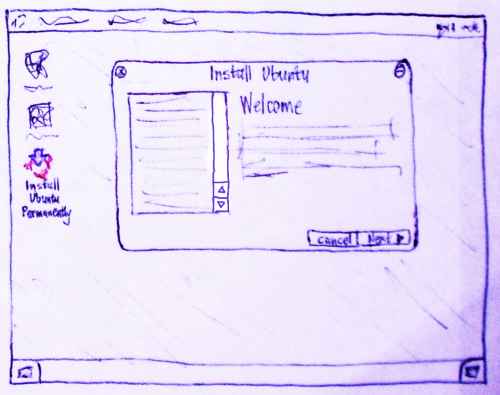
The installation window is not full screen, but just big enough to show the largest page (the partitioning tool). The window has the title "Install Ubuntu", and is not resizable.
At the bottom right of the window is a pair of equal-sized buttons, "◀ Back" (text left-aligned, activated by Alt+Left) and "Next ▶" (text right-aligned, activated by Enter or Alt+Right). At the first step, "◀ Back" is replaced by "Cancel" (text centered, with no icon, activated by Escape); at the last step, "Next ▶" is replaced by "Install" (text centered, with no icon, activated by Enter). These wording changes do not cause the buttons to jump about; they are wide enough for either wording at all times.
Accessibility
Ensuring that the Live CD boot process and Ubuntu Express is accessible will enable users with disabilities to independently install and configure Ubuntu. Most of the work is actually done in gfxboot to provide an accessible Live CD session surrounding Ubuntu Express itself. For details see: UbuntuExpress/Accessibility.
Welcome
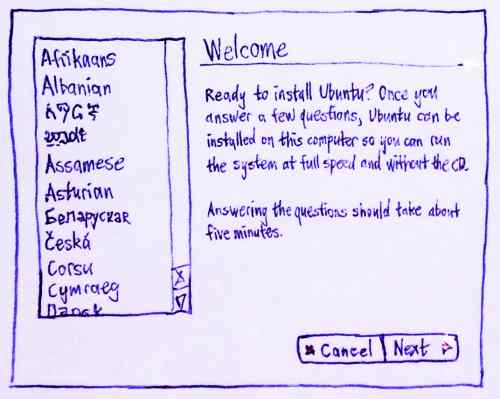
The first page of the installer lets you choose your preferred language, for the installation itself and for your Ubuntu account. On architectures where language selection is available in the boot loader, this defaults to that language; otherwise, it defaults to US English. This page also displays a welcome message and explanatory blurb in the selected language; the message is updated live as the selection changes. (This eliminates the appearance of wasting time if you did choose the appropriate language in the bootloader.)
Keyboard layout
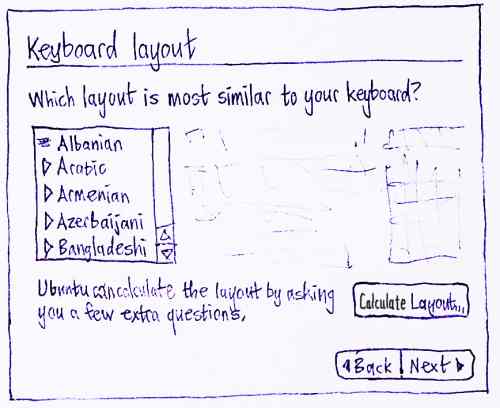
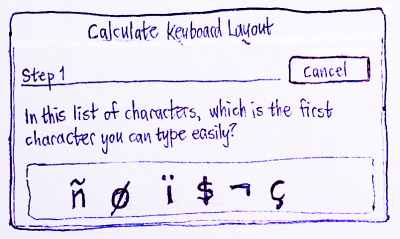
The next step is asking for the keyboard layout; the selected layout applies both to the rest of the installer (so that answers to later questions can be typed successfully), and to the login screen of the system itself once it is installed. The default choice is the most likely keymap for the selected language.
If there is time: When the list appears, it is scrolled so that the default choice is as close as possible to the middle of the listbox.
Personal information
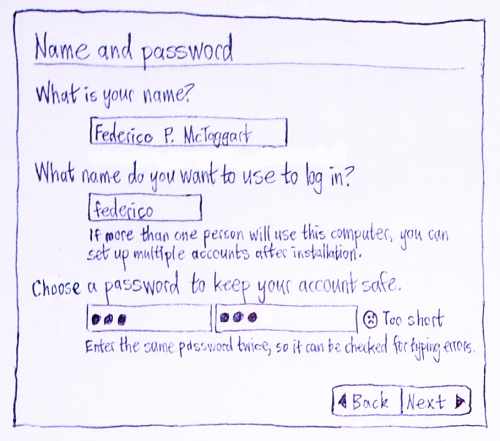
Until it is changed manually, the login name field is constantly updated to be equal to the first word in the person's name, converted to lower case and cropped if necessary to the maximum number of characters allowed. When the person first changes the field manually, it stops dynamically updating.
If "Next ▶" is activated while one or more of the fields have impossible values, no alert appears. Instead, errors are indicated next to the relevant fields with a mini red error icon ⊝ and a brief description of the error, and the first errant field should be focused (for mismatching passwords, this means the first password field). For example:
[ ] ⊝ You must enter a name.
[ ] ⊝ You must enter a login name.
[••••••• ][•••••• ] ⊝ Passwords must match.
If there is time: The name and login name fields actively prevent invalid values, by ignoring impossible characters, and by ignoring further entry in the login name field if if already contains 16 characters. The password field is more passive, reporting errors next to the field but not preventing them; otherwise people may not notice the prevention, and may think they have entered a password different from the one that was accepted.
If there is time: If a password is entered that is too short, is found in a dictionary, or is easily derived from the real name or login name, this is indicated using a mini warning icon and brief warning text ("Too short." or "Too obvious.") next to the password fields, as soon as focus leaves the first password field. These warnings do not prevent you from continuing, and they are subordinate to the "Passwords must match." error message.
Future work: "Who will be using this computer?" -- multiple names at once, to encourage use of individual accounts.
Location
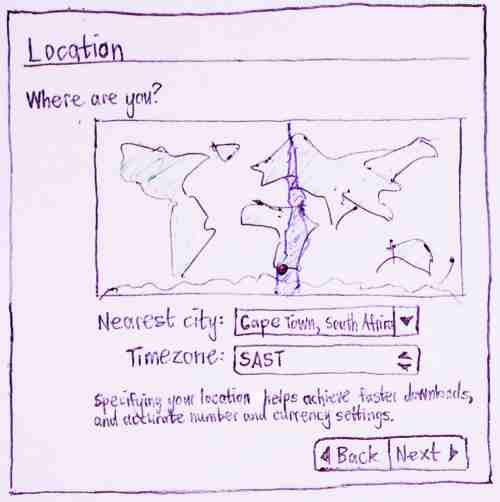
The "Time zone:" value should be text, not an option menu as shown in this mockup.
At a minimum, the map functions identically to that in the "Time zone" dialog of Gnome's "Time and Date" control panel.
If there is time: (for both the installer, and the "Time and Date" control panel itself)
The map does not zoom in. The zooming is disconcerting, it's not particularly useful, and it's hard to work out how to zoom out again.
Selecting a place in a particular timezone highlights the whole area of the world that shares that timezone.
The map behaves like a single-selection listbox: mousing down highlights the selected timezone (and update the values of the controls underneath), and dragging continues visibly changing the selection.
Making a selection from the map causes the "Nearest city:" and the "Time zone:" values to update. Making a selection from the "Nearest city:" combo box causes the map and the "Time zone:" value to update.
Partitioning
See UbuntuExpress/PartitioningTool.
Future work: Let people transfer (non-dot?) files from their home folder.
Ready to install
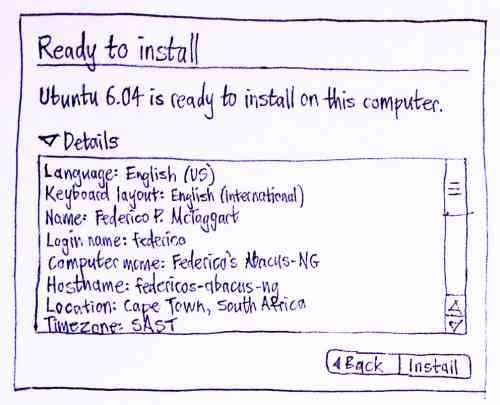
The final page summarizes the information entered in the previous steps, in a text box from which it can be copied for printing/e-mailing/etc. This box is hidden by default using an expander control.
Clicking "Install" closes the installer window, and opens a separate progress window.
Progress information
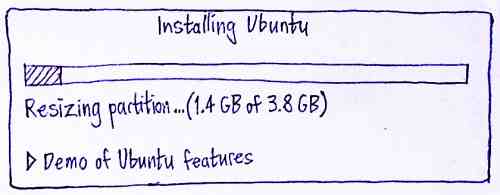
The progress window contains a single progress bar that fills up only once. Partitioning is allocated 10% of the size of the progress bar; this may be tweaked if it is either too much or too little for most systems.
During installation of language packs, and only during that stage, a "Skip" button is present next to that text. This lets people avoid installing the language packs, without requiring a question to be answered about them.
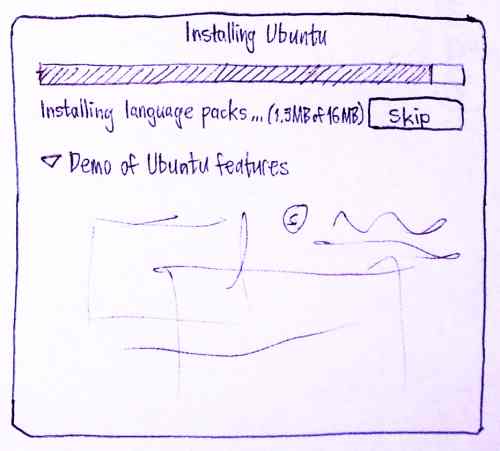
Future work: An animated demo of Ubuntu's benefits is shown during the installation process, à la Windows 95. The demo is in a section with an expander (expanded by default), so it can be collapsed for people who want to see just the progress.
Implementation
Since the Guadalinex team has already implemented a significant amount of this, we will use their work as a base. However, discounting minor user interface tweaks, the current code base has the problem that it duplicates both code and translatable strings from the installer, which causes problems such as desynchronisation of functionality with the installer (e.g. username/password validation in current ubuntu-express produces different results from the installer's validation code) and the loss of many existing translations of strings from the installer.
I believe that both issues can be solved by borrowing infrastructure from oem-config, where I had to address similar problems and did so using a debconf protocol filter: debconf-using code (e.g. installer code) can be run unmodified inside a wrapper that runs custom user interface code rather than a standard debconf frontend, and translated strings can be extracted directly from the debconf database. -- ColinWatson
Aside from that, a quick glance over the Guadalinex code suggests that its user interface has reasonably good separation between frontend and backend: the frontend asks all questions up-front and then runs widget-set-independent backend code that feeds answers into the debconf database and performs the installation proper. (Integration with oem-config may suggest answers reaching the debconf database while the frontend is running, but that's OK.)
Code
Move debconffilter from oem-config into debconf proper.
Discussion
It has been decided not to include a page asking for the computer name in the installer, for several reasons.
UbuntuExpress is for installing a desktop, not a server. For a desktop, the hostname from DHCP/DNS if available -- and "Name of Person’s Computer" otherwise -- is a reasonable default, RFC 1178 notwithstanding.
- Ubuntu no longer ships an MTA by default, making renaming the computer (the primary concern of RFC 1178) much less painful.
- Gnome's "Network Preferences" allow the computer to be renamed, making renaming even less painful. If this does not change the hostname everywhere it should, that is a bug that should be fixed.
- Choosing a custom name is the slowest part of the installer (since people spend time thinking about it), so cutting the page is a substantial win.
If the page had been necessary, it would have appeared like this.
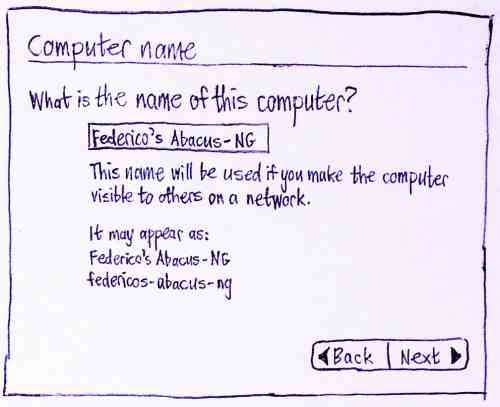
The field would have been restricted to ASCII characters. The name would have been used as-is for Avahi configuration, with a normalized version used as the hostname. The hostname would have had quote marks and brackets stripped, and other punctuation and spaces converted to dashes, this conversion being presented live during the input.
- Using a non-fullscreen window for installing an entire operating system may be handy, but it also seems unusually understated. It's possible that this will be more disconcerting than convenient for most people.
- A demo of Ubuntu's benefits would make in the installer if it was full-screen, but while it's just another window, why not make the demo a separate program that people can run independently of the installer instead?
=> Why not both. Have it play during install, and allow people to watch it from the livecd as well, to get a feel of the system. -> pop up a notify balloon about a "feature introduction/preview"?
RobJCaskey:
- Seconded on Matthew's point. A full-screen installer feels safer, but it's not a big deal. OS 9 installed without a full-screen installer and noone was scared by it.
For alternative mockups of the "Personal information" and "Computer name" sections, see UbuntuExpress/GnomeUserInterface/Alternatives.
Some people feel that you should have more screens and less information per screen. I think you can have a lot of information on one screen without cluttering too much. Here's an example while I was playing with XUL a few weeks ago: http://www.jonathancarter.co.za/projects/tust/opts.xul - one day when I get the hang of the d-i backend I will attempt to put together a mozilla based installer for Ubuntu.
- The demo should also be translatable through rosetta. If we opt for images with some form of text layered on top, the xcf source of these should be available to translators, and a web interface for providing translated images should be implemented.
- Ubuntu should provide a option to download support (packages) for Restricted Formats to remain competitive with other popular linux distributions (such as Open Suse - it contains the same option during installation process, Mandriva, etc...).
UbuntuExpress is a good opportunity to greatly improve the accessibility of Ubuntu with a few small improvements. This sub-page: UbuntuExpress/GnomeUserInterface/Accessibility list a few AT-related issues for UbuntuExpress.
UbuntuExpress/GnomeUserInterface (last edited 2008-08-06 16:19:54 by localhost)