Sessions
Scheduling |
Participating |

Running Sessions
These instructions are for the track leads or session leads who will be running a virtual UDS session. They are not needed for people who are participating on a session. For participation see UDS/Hangouts
Starting the Hangout
Prior to the start of a session, the track lead will need to create a new On-Air Hangout. To create an On-Air Hangout, click the "Start a Hangout" button on Google+, and check the "Enable Hangouts On Air" checkbox.

The hangout will start in a non-broadcasting mode at first. This will give you time to add the Hangout details to the Summit meeting page.

When the session is to begin, the Track Lead will press the “Start Broadcast” button (only available to the person who created the Hangout) to begin streaming the Hangout video. At the end of the session, the Track Lead will end the broadcast, which will then save the recorded video to YouTube for future viewing.
Updating Summit
Before turning on the broadcast, the Track Lead will copy the Hangout URL and the YouTube URL (which can be shown by clicking the “Embed” link in the above screenshot) into the "Edit Hangout Details" form on Summit for that session.


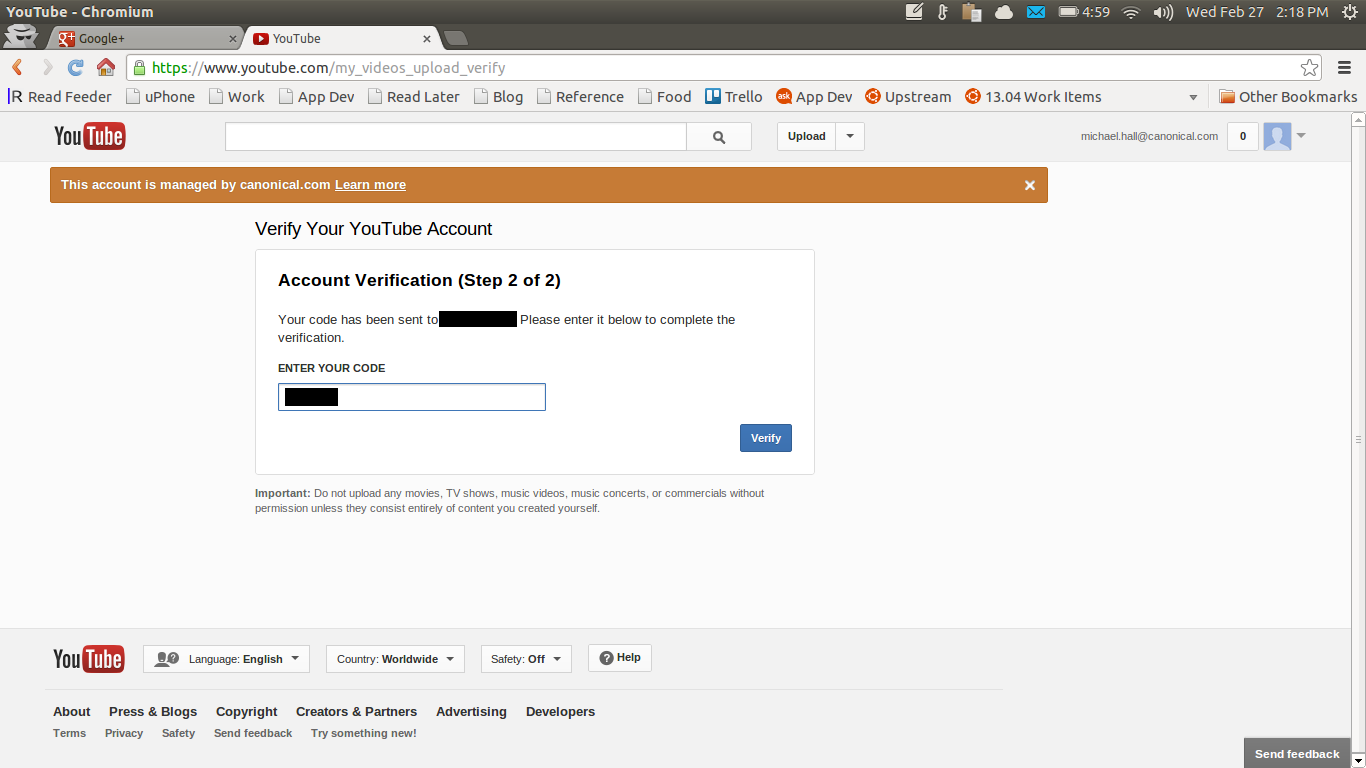
Verifying your Account
You will need to have a Verified YouTube profile before you can start an On-Air Hangout. You will be prompted to do this when you first attempt to create an On-Air Hangout, and the process will send a verification token over SMS to your mobile phone.