Procedures
|
Size: 7411
Comment: New procedure page for laptop tracker
|
Size: 6674
Comment:
|
| Deletions are marked like this. | Additions are marked like this. |
| Line 18: | Line 18: |
| * Now you have to have an account in the tracking system, which lets you report your test results. We are going to use it to generate data (it will be publicly available). | * Join the [[https://launchpad.net/~ubuntu-laptop-testing|Ubuntu Laptop Testing Team]] on Launchpad. |
| Line 20: | Line 20: |
| 1. Click on "Log In" and "Create New Account" | 1. Click on "Log In" button, enter your Launchpad account and authenticate using Single-Sign-On service. '''''Note:''''' ''If your laptops have already been tested for the Ubuntu Friendly project (using checkbox) and so you have an hardware profile on the [[http://friendly.ubuntu.com|Ubuntu Friendly website]] you can skip the next step'' |
| Line 22: | Line 23: |
| '''''Note:''''' ''If you have already registered for one of the other QA sites (e.g. ISO Tracker) you don't need to do it for the laptop tracker also, unless you are going to test more than a laptop. In this case you need a new registration for each additional laptop you own. A nice suggestion could be to name each new tracker username as Username-Laptopmake, where Laptopmake = Asus, Acer, Toshiba etc. '' * Set up your profile providing all these required following info (mandatory): |
* Now you need to set up an hardware profile for your laptop. * The best way (even if it's the longer one) is to create an hardware profile of your laptop in the [[http://friendly.ubuntu.com|Ubuntu Friendly website]]. To do so you need to launch Checkbox on laptop and do some tests, at the end of the process it creates a report for submission to the hardware database. |
| Line 25: | Line 26: |
| * The quick way instead is to create a subpage under your personal wiki page for each laptop you want to test (e.g. http://wiki.ubuntu.com/YourProfilePage/AcerTM6593G) filling it with all these required following info: | |
| Line 26: | Line 28: |
| 1. '''Laptop make and model''' | 1. '''Laptop make and model''' the output of ''sudo dmidecode -s system-manufacturer'' and ''sudo dmidecode -s system-product-name'' command. On Lenovo laptops you need also to run 'sudo dmidecode -s system-version' to get the first part of the model name. |
| Line 28: | Line 30: |
| Fill in with the manufacturer name and the model of your laptop, as outputted by the commands reported capitalizing the first letter only(see below). In some special cases the output can be wrong or not as expected, so check it and, if needed, put the correct value manually adjusting it as these examples: * '''Dell Inc.''' → '''Dell''' * '''Matsushita Electric Industrial Co.,Ltd.''' → '''Panasonic''' * '''TOSHIBA''' → '''Toshiba''' * '''ASUSTeK Computer Inc.''' → '''Asus''' {{attachment:make-model2.png}} 1. '''Laptop hardware info''' || {{attachment:lspci1.png}} || Fill in with the output of ''lspci -v'' command. || || {{attachment:lsusb.png}} || Fill in with the output of ''lsusb'' command. || || {{attachment:lshw.png}} || Fill in with the output of ''lshw -short'' command. || |
1. '''Laptop hardware info''' the output of ''lspci -v'', ''lsusb'' (without any external device attached) and ''lshw -short'' commands. <<BR>><<BR>>''(If you'll get a warning that you should be a super user or the list could be incomplete. Don't worry about that)'' |
| Line 47: | Line 33: |
| 1. '''Launchpad username ''' || {{attachment:laptop-lpusername.png}} || Fill in with your Launchpad username || |
|
| Line 54: | Line 34: |
| * You can sign up for individual test cases on any ISO. This helps everyone to see which tests are being covered and sends you a notification email when a new milestone is available to be tested, provided you have opted in to email notification (user settings). {{attachment:iso-email.png}} |
* You can sign up for individual test cases on any ISO selecting them and clicking on Subscribe. This helps everyone to see which tests are being covered and sends you a notification email when a new milestone is available to be tested. |
| Line 61: | Line 39: |
| Milestone ISO images are found at [[http://cdimage.ubuntu.com|cdimage.ubuntu.com]]. | Milestone ISO images are found at [[http://releases.ubuntu.com|releases.ubuntu.com]]. |
| Line 63: | Line 41: |
| {{attachment:iso-download.png}} | {{attachment:iso-download1.png}} |
| Line 65: | Line 43: |
| The images currently being tested are listed on [[http://laptop.qa.ubuntu.com/|laptop.qa.ubuntu.com]] with a direct download link and the appropriate rsync command for your convenience (click {{attachment:info.png}} for the download page). We advise that you download the images you expect to test ahead of time and use rsync to update them, as this will reduce the turn around time on testing. Rsync only downloads the parts of the image that have changed and typically takes about 10% of the full download time with reasonably fresh images. See [[https://help.ubuntu.com/community/RsyncCdImage|instructions on using rsync]]. | The images currently being tested are listed on [[http://laptop.qa.ubuntu.com/|laptop.qa.ubuntu.com]] with a direct download link and the appropriate rsync command for your convenience (click {{attachment:info.png}} for the download page). If you already have the previous milestone you can use rsync to update it , as this will reduce the turn around time on testing. Rsync only downloads the parts of the image that have changed. See [[https://help.ubuntu.com/community/RsyncCdImage|instructions on using rsync]]. |
| Line 69: | Line 48: |
| Every milestone (see [[#Calendar|Calendar]]), we will be starting a new testing cycle. The tests will appear in the tracker and everybody is free to submit their results any time during the following two weeks. The following milestone a new cycle will start, and results will be fresh again. | On the tracker you will be presented with a list of available milestones to test, the stable ones like Oneiric Ocelot and those of the current development release of Ubuntu. |
| Line 71: | Line 50: |
| Every testing cycle, you will see the tracker ([[http://desktop.qa.ubuntu.com]]) reset. You need to click on an application to see the list of testcases: | Every milestone we will be starting a new testing cycle. Everybody is free to submit their results in the weeks that follow the official release of a milestone (although we encourage you to run them as soon as possible, so developers can have enough time to fix the bugs). |
| Line 73: | Line 52: |
| {{attachment:laptop-report2.png}} | You have to choose the milestone and the architecture (32 or 64 bit) you want to test and each one has a set of test cases associated with it. Click {{attachment:test.png}} on the tracker to see details of the test case. |
| Line 75: | Line 54: |
| Each ISO image has a set of test cases associated with it. Click {{attachment:test.png}} on the tracker to see details of the test case. | {{attachment:laptop-report.png}} |
| Line 77: | Line 56: |
| To subscribe to a specific ISO and tests, select the flavour and the architecture (32 bit, 64 bit) from the list. Then select the tests you wish to subscribe to and then hit ''subscribe''. You will receive an email announcing there are tests available, provided you also opt-in to email notification on your profile. | To subscribe to a specific ISO and tests, select the architecture from the list. Then mark the checkboxes next to the tests you wish to subscribe to and then hit ''Subscribe''. You will receive an email announcing there are tests available. |
| Line 81: | Line 61: |
| The test results are tracked on the laptop testing tracker website at [[http://laptop.qa.ubuntu.com/|laptop.qa.ubuntu.com]]. Once you are registered, you can log in to report your test results. The website is divided into several sections, and results are reported based on the following criteria: | The test results are tracked on the laptop testing tracker website at [[http://laptop.qa.ubuntu.com/|laptop.qa.ubuntu.com]]. You need to log in to report your test results. The website is divided into several sections, and results are reported based on the following criteria: |
| Line 89: | Line 69: |
| Laptop test cases normally last for at least half an hour. To avoid duplicating efforts, it is good to let others know that you have started a test case. | Laptop test cases normally last for at least half an hour. To avoid duplicating efforts, it is good to let others know that a test is in progress. |
| Line 91: | Line 71: |
| To mark a test as "Started" select the result "Started" and submit the result. It will show up in the list with a "clock" icon. | To mark a test as "In progress" select the result "In progress" and submit the result. It will show up in the list with a "clock" icon. |
| Line 93: | Line 73: |
| {{attachment:started.png}} | {{attachment:inprogress1.png}} |
| Line 97: | Line 77: |
| When you have conducted a test you can report the results in the Laptop tracker with a general comment and bug numbers if applicable. | When you have conducted a test you can report the results in the Laptop tracker providing the link to you laptop hardware profile (Ubuntu Friendly or wiki one), a general comment and bug numbers if applicable. |
| Line 99: | Line 79: |
| {{attachment:testreport.png}} | {{attachment:testreport1.png}} |
| Line 109: | Line 89: |
== Results summary == {{attachment:laptop-menu1.png}} You can see a summary of results clicking on the link '''Laptops summary''' present in ''Action'' left-hand menu and are reported based on the following criteria: * Laptop manufacturer (Acer, Dell, Asus etc.) * Laptop model * Release (Lucid, Natty etc.) * Architecture (i386, amd64) * Category of hardware (e.g., Audio, Video, Input/Output etc.) * Piece of hardware (e.g., Speakers, Keyboard, Hotkeys, etc.) |


Preparations
What you need
A laptop to be tested in a live environment or in an installed system. (A virtual machine cannot be used because we need to test real hardware.)
A moderate level of Linux experience so you are able to find the relevant log files and produce useful bug reports: ReportingBugs
- Some available time just after a milestone release to perform tests and file reports.
Setting up

If you do not already have one, set up a Launchpad account so you can report bugs. If you have signed up to edit the Ubuntu wiki you will already have a Launchpad account.
Join the Ubuntu Laptop Testing Team on Launchpad.
Go to laptop.qa.ubuntu.com.
- Click on "Log In" button, enter your Launchpad account and authenticate using Single-Sign-On service.
Note: If your laptops have already been tested for the Ubuntu Friendly project (using checkbox) and so you have an hardware profile on the Ubuntu Friendly website you can skip the next step
- Now you need to set up an hardware profile for your laptop.
The best way (even if it's the longer one) is to create an hardware profile of your laptop in the Ubuntu Friendly website. To do so you need to launch Checkbox on laptop and do some tests, at the end of the process it creates a report for submission to the hardware database.
The quick way instead is to create a subpage under your personal wiki page for each laptop you want to test (e.g. http://wiki.ubuntu.com/YourProfilePage/AcerTM6593G) filling it with all these required following info:
Laptop make and model the output of sudo dmidecode -s system-manufacturer and sudo dmidecode -s system-product-name command. On Lenovo laptops you need also to run 'sudo dmidecode -s system-version' to get the first part of the model name.
Laptop hardware info the output of lspci -v, lsusb (without any external device attached) and lshw -short commands.
(If you'll get a warning that you should be a super user or the list could be incomplete. Don't worry about that)
- Select the ISO images you expect to test and look over the relevant test cases, making sure you have the test setup you need.
- You can sign up for individual test cases on any ISO selecting them and clicking on Subscribe. This helps everyone to see which tests are being covered and sends you a notification email when a new milestone is available to be tested.
Downloading images
Milestone ISO images are found at releases.ubuntu.com.
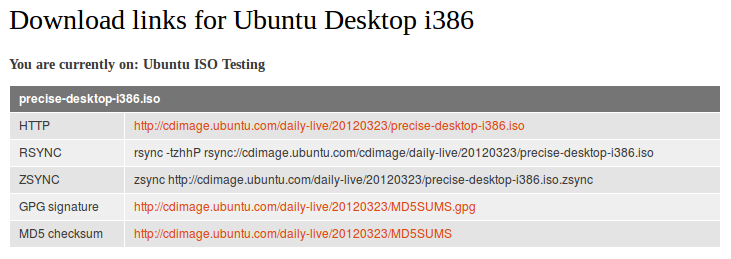
The images currently being tested are listed on laptop.qa.ubuntu.com with a direct download link and the appropriate rsync command for your convenience (click  for the download page). If you already have the previous milestone you can use rsync to update it , as this will reduce the turn around time on testing. Rsync only downloads the parts of the image that have changed. See instructions on using rsync.
Testing
On the tracker you will be presented with a list of available milestones to test, the stable ones like Oneiric Ocelot and those of the current development release of Ubuntu.
Every milestone we will be starting a new testing cycle. Everybody is free to submit their results in the weeks that follow the official release of a milestone (although we encourage you to run them as soon as possible, so developers can have enough time to fix the bugs).
You have to choose the milestone and the architecture (32 or 64 bit) you want to test and each one has a set of test cases associated with it. Click  on the tracker to see details of the test case.
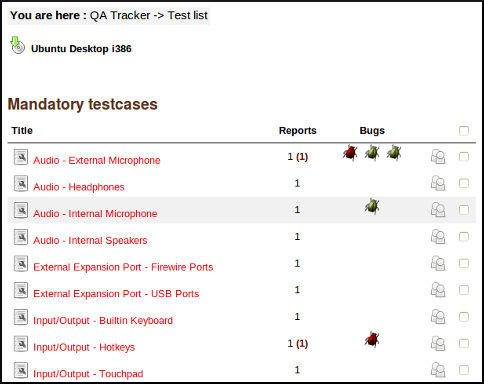
To subscribe to a specific ISO and tests, select the architecture from the list. Then mark the checkboxes next to the tests you wish to subscribe to and then hit Subscribe. You will receive an email announcing there are tests available.
Reporting results
The test results are tracked on the laptop testing tracker website at laptop.qa.ubuntu.com. You need to log in to report your test results. The website is divided into several sections, and results are reported based on the following criteria:
- Ubuntu architecture (e.g., Ubuntu i386 or amd64)
- Category of hardware (e.g., Audio, Video, Input/Output etc.)
- Piece of hardware to test (e.g., Speakers, Keyboard, Hotkeys, etc.)
Starting a test
Laptop test cases normally last for at least half an hour. To avoid duplicating efforts, it is good to let others know that a test is in progress.
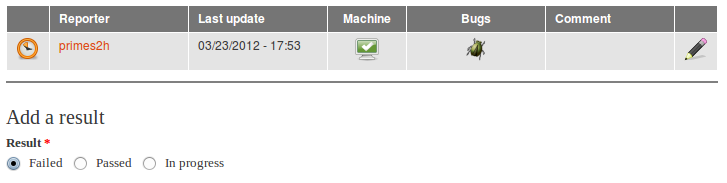
To mark a test as "In progress" select the result "In progress" and submit the result. It will show up in the list with a "clock" icon.
Adding test reports
When you have conducted a test you can report the results in the Laptop tracker providing the link to you laptop hardware profile (Ubuntu Friendly or wiki one), a general comment and bug numbers if applicable.
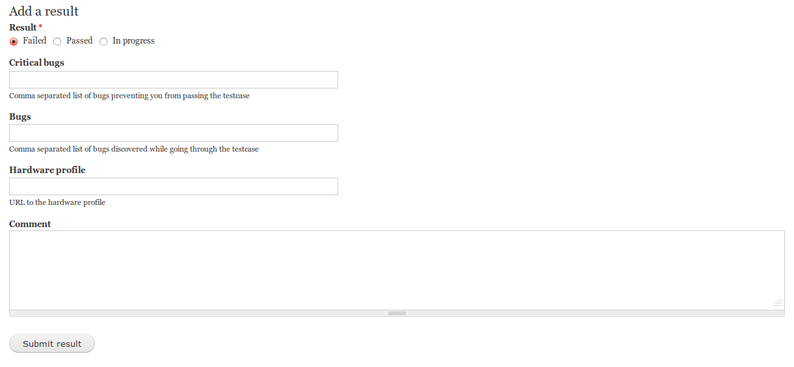
You can mark a test as Passed or Failed. In the Laptop test tracker we mark as failures those experiences that prevented us to do what we wanted to achieve in that test case. I.e. If we want that Audio works, and you can't hear from speakers, that's a failure. If you hear slight noise from speaker, the test didn't fail as such. We would mark that as success, but will link the non-critical bugs that we find.
Filing bugs
As with all testing it is important to file bugs. If you find a bug, please, search if it has already been reported, and if it hasn't, report it yourself. You should also refer to the bug filing/debugging guide for that specific piece of hardware to make sure you are aware of known issues and have attached the relevant log files.
To mark a test as Failed it is mandatory to link the test report with at least one bug in Launchpad.
Testing/Laptop/Procedures (last edited 2013-10-23 16:57:28 by adsl-98-70-51-119)