Procedures
|
Size: 6751
Comment: created this page from reporting results page. cleaned it up and added a TOC.
|
Size: 6280
Comment:
|
| Deletions are marked like this. | Additions are marked like this. |
| Line 1: | Line 1: |
| ||<tablestyle="float:right; font-size: 0.9em; width:40%; background:#F1F1ED; margin: 0 0 1em 1em;" style="padding:0.5em;">'''Contents'''[[BR]][[TableOfContents]]|| | <<Include(Testing/Header)>> |
| Line 3: | Line 3: |
| == Getting Ready == | ||<tablestyle="float:right; font-size: 0.9em; width:40%; background:#F1F1ED; margin: 0 0 1em 1em;" style="padding:0.5em;"><<TableOfContents>>|| == Preparations == |
| Line 10: | Line 11: |
| * A [https://launchpad.net Launchpad] account so you can sign up for testing and report bugs. If you have signed up to edit the Ubuntu wiki you will already have a Launchpad account. | === Setting up === {{attachment:isotesting-logo.png}} * If you do not already have one, set up a [[https://launchpad.net|Launchpad]] account so you can report bugs. If you have signed up to edit the Ubuntu wiki you will already have a Launchpad account. * Register with the test tracker at [[http://iso.qa.ubuntu.com/|iso.qa.ubuntu.com]] which lets you report your test results. Even if you have registered for Brainstorm you will need to register for the tracker also. * Select the ISO images you expect to test and look over the relevant test cases, making sure you have the test setup you need. === Subscribing === * You can sign up for individual test cases on any ISO. This helps everyone to see which tests are being covered and sends you a notification email when a new build is available, provided you have opted in to email notification inside user settings. {{attachment:iso-email.png}} |
| Line 14: | Line 28: |
| Download the latest daily build for testing from one of these locations: | Daily ISO images are found at [[http://cdimage.ubuntu.com|cdimage.ubuntu.com]]. We advise that you download the images you expect to test ahead of time and use zsync or rsync to update them, as this will reduce the turn around time on testing. Zsync only downloads the parts of the image that have changed and typically takes about 10% of the full download time with reasonably fresh images. See [[https://help.ubuntu.com/community/ZsyncCdImage|instructions on using zsync]]. |
| Line 16: | Line 30: |
| * Live CDs: [http://cdimage.ubuntu.com/daily-live/current/ Ubuntu], [http://cdimage.ubuntu.com/kubuntu/daily-live/current/ Kubuntu], [http://cdimage.ubuntu.com/edubuntu/daily-live/current/ Edubuntu], [http://cdimage.ubuntu.com/xubuntu/daily-live/current/ Xubuntu] * Alternate CDs: [http://cdimage.ubuntu.com/daily/current/ Ubuntu], [http://cdimage.ubuntu.com/kubuntu/daily/current/ Kubuntu], [http://cdimage.ubuntu.com/edubuntu/daily/current/ Edubuntu], [http://cdimage.ubuntu.com/xubuntu/daily/current/ Xubuntu] * DVDs: [http://cdimage.ubuntu.com/dvd/current/ Ubuntu], [http://cdimage.ubuntu.com/kubuntu/dvd/current/ Kubuntu], [http://cdimage.ubuntu.com/edubuntu/dvd/current/ Edubuntu] |
{{attachment:iso-images.png}} {{attachment:iso-download.png}} |
| Line 20: | Line 33: |
| Updates to these builds will be announced on #ubuntu-devel, #ubuntu-iso and on email (for those who have signed up to testing). '''Check the md5sum!''' To check the md5sum of your image, open a terminal and write: {{{ md5sum imagename.iso }}} The reference value can be found in a file named {{{MD5SUMS}}} in the ISO image download directory. === Using Rsync === Once you've downloaded a daily image you can get updated versions of that image more quickly using rsync (typically 10% of the full download time). This is because the images will likely not have changed dramatically over a few days, and they are built in such a way as to make rsyncing feasible (yay!). Read instructions on using rsync here: https://help.ubuntu.com/community/RsyncCdImage You may want to set up a simple shell script to perform rsyncs of the images you plan to test. And again: '''Check the md5sum!''' And in fact, when using rsync that is also a handy way of checking that you actually have the right image. |
The images currently being tested are listed on [[http://iso.qa.ubuntu.com/|iso.qa.ubuntu.com]] with a direct download link and the appropriate rsync command for your convenience (click {{attachment:info.png}} for the download page). Updates to these builds will be announced on '''#ubuntu-devel''', '''#ubuntu-testing''' and (optionally) by email. |
| Line 40: | Line 39: |
| See the overview of [:Testing/InstallMethods:Install Methods]. | {{attachment:iso-report.png}} |
| Line 42: | Line 41: |
| === Filing bugs === | Each ISO image has a set of test cases associated with it. Click {{attachment:test.png}} on the tracker to see details of the test case and see [[Testing/InstallMethods]] for details on each install method. |
| Line 44: | Line 43: |
| As with all testing it is important to [https://help.ubuntu.com/community/ReportingBugs file bugs]. If you find a bug, please, search if it has already been reported, and if it hasn't, report it yourself. You should also refer to the [https://wiki.ubuntu.com/DebuggingProcedures bug filing/debugging guide] for that specific package (if available) to make sure you are aware of known issues and have attached the relevant log files. === Daily images and Tribe releases === The daily images between milestone releases will typically only be tested by developers, testers and enthusiasts, while the milestones (Tribes in the case of the Gutsy Gibbon) are more widely announced and will be tested by a larger audience. The most important goal with these images is simply to find as many bugs as possible and report them with enough detail that they can be fixed. Finding the bugs ahead of the milestone crunch (in random dailies) is helpful as it gives us more time to fix them. Of course finding and reporting bugs in the released milestones (Tribes) is also useful for improving the overall quality of the distribution. As there is less time pressure on testing these images than the pre-release ones, we would encourage more in-depth testing on a range of hardware to flush out the deeper hidden bugs. If possible, please use the [https://wiki.ubuntu.com/Testing/Long long test program] and perform installs using a variety of methods. === pre-Tribe releases === The purpose of the Alpha milestones is to encourage some wider public testing of the CD builds. Before we can recommend the images for public testing we must at least ensure that they have all built correctly (are not in themselves corrupt) and are at least known to boot on some machines. Some form of installation should also be tested. We do not require that these images be tested for any possible minor defect or that all possible install methods work, since that is rather the goal of the wider image testing itself. Find the show stopper bugs and get them fixed using the [https://wiki.ubuntu.com/Testing/Short short test program] with at least one install method. When an important error is found, the current frozen images are rejected and new ones are built after the fix has been applied. It is therefore important to make sure that you are testing the most recent images. If the bug is specific to one flavour, only those will be re-built and the other flavour builds remain valid. So if we find a serious bug in the Ubuntu version we will rebuild those images, which will take several hours in total. That would be a good opportunity to test K/X/Edubuntu while you wait :) Likewise, if we find a bug that exists across all flavors, but only on i386, we will re-build i386 and all amd64 and PPC images remain valid. === Beta, RC and Final === For Beta, RC and Final we have extended testing periods where we try to find as many bugs as we can. With the Beta we want to put our best foot forward across the distribution and want to fix as many bugs as we have the manpower for, large or small. For RC and the final release on the other hand, we will only fix the remaining release critical bugs. This is because seemingly small changes can have unintended consequences and break other things. Minor changes that are merely a good idea to fix will be deferred to downloadable updates. The procedure of rejecting know bad images and continuing testing of unaffected ones also applies here as with the Alphas. |
To subscribe to a specific ISO and tests, select the flavour from applet menu then the architecture (32 bit, 64 bit) from the list. Then select the tests you wish to subscribe to and then hit ''subscribe''. You will receive an email announcing there are tests available, provided you also opt-in to email notification on your profile. |
| Line 70: | Line 47: |
| Once you have completed your testing of a particular image, you can [:/Testing/Community/ReportingResults:report your results]. | The test results are tracked on the iso testing tracker website at [[http://iso.qa.ubuntu.com/|iso.qa.ubuntu.com]]. Once you are registered, you can log in to report your test results. The website is divided into several sections, and results are reported based on the following criteria: * Flavor of Ubuntu (e.g., Ubuntu, Kubuntu, Xubuntu, Edubuntu, etc.) * Type of CD image (e.g., live or alternate install cd) * Method of installation (e.g., manual partitioning, partition resizing, etc.) Links to the different flavors of Ubuntu are present in left-hand menu. {{attachment:iso-menu.png}} === Starting a test === ISO test cases normally last for at least half an hour. To avoid duplicating efforts, it is good to let others know that you have started a test case. To mark a test as "Started" select the result "Started" and submit the result. It will show up in the list with a "clock" icon. {{attachment:started.png}} === Adding test reports === When you have conducted a test you can report the results in the ISO tracker with a general comment and bug numbers if applicable. {{attachment:testreport.png}} You can mark a test as Passed or Failed. In the ISO test tracker we mark as failures those experiences that prevented us to do what we wanted to achieve in that test case. I.e. If we want to install, and the partition manager fails, that's a failure. If we do install (or can access to the Live environment, as in this case), the test didn't fail as such. We would mark that as success, but will link the non-critical bugs that we find. When reporting a broken image it is important that you check the that md5sum corresponds to the ISO being tested to confirm that you do indeed have the correct ISO and that it is not corrupted. To check the md5sum of your image, open a terminal and execute: {{{ md5sum imagename.iso }}} Where "imagename.iso" is the name of the iso image that you have downloaded and want to verify. The reference value can be found in a file named {{{MD5SUMS}}} in the ISO image download directory. If the md5sum is correct you may also want to run the CD self test on the install media you used. === Bugs === As with all testing it is important to [[https://help.ubuntu.com/community/ReportingBugs|file bugs]]. If you find a bug, please, search if it has already been reported, and if it hasn't, report it yourself. You should also refer to the [[https://wiki.ubuntu.com/DebuggingProcedures|bug filing/debugging guide]] for that specific package (if available) to make sure you are aware of known issues and have attached the relevant log files. To mark a test as Failed it is '''mandatory''' to link the test report with at least one bug in Launchpad. The tracker needs you to type the Launchpad.net bug number. For example: 123456789 |


Preparations
What you need
- A spare computer or hard drive for test installs. (A virtual machine can be used but we would prefer to see more tests performed on a variety of physical hardware.)
A moderate level of Linux experience so you are able to find the relevant log files and produce useful bug reports: ReportingBugs
- Some available time before a milestone release to perform tests and file reports.
Setting up

If you do not already have one, set up a Launchpad account so you can report bugs. If you have signed up to edit the Ubuntu wiki you will already have a Launchpad account.
Register with the test tracker at iso.qa.ubuntu.com which lets you report your test results. Even if you have registered for Brainstorm you will need to register for the tracker also.
- Select the ISO images you expect to test and look over the relevant test cases, making sure you have the test setup you need.
Subscribing
- You can sign up for individual test cases on any ISO. This helps everyone to see which tests are being covered and sends you a notification email when a new build is available, provided you have opted in to email notification inside user settings.
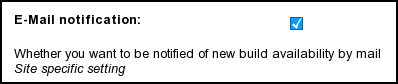
Downloading images
Daily ISO images are found at cdimage.ubuntu.com. We advise that you download the images you expect to test ahead of time and use zsync or rsync to update them, as this will reduce the turn around time on testing. Zsync only downloads the parts of the image that have changed and typically takes about 10% of the full download time with reasonably fresh images. See instructions on using zsync.
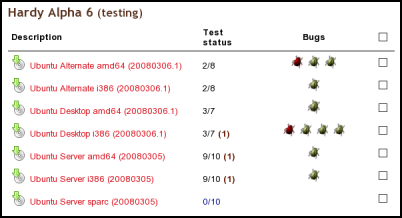
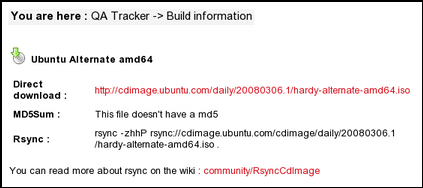
The images currently being tested are listed on iso.qa.ubuntu.com with a direct download link and the appropriate rsync command for your convenience (click  for the download page). Updates to these builds will be announced on #ubuntu-devel, #ubuntu-testing and (optionally) by email.
Testing
In doing specific testing of the CD/DVD images it is important to focus on those aspects that are typically not used by those who simply run the latest unstable version on their system through daily updates (Such testing is of course also extremely valuable). Key points in image testing include image integrity (md5sums), Live CD and installer functionality.
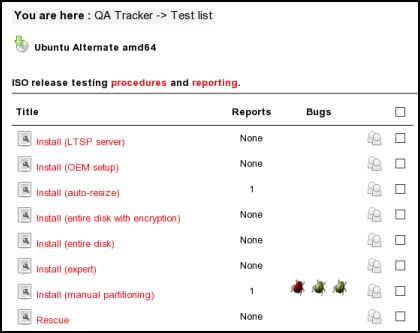
Each ISO image has a set of test cases associated with it. Click  on the tracker to see details of the test case and see Testing/InstallMethods for details on each install method.
To subscribe to a specific ISO and tests, select the flavour from applet menu then the architecture (32 bit, 64 bit) from the list. Then select the tests you wish to subscribe to and then hit subscribe. You will receive an email announcing there are tests available, provided you also opt-in to email notification on your profile.
Reporting results
The test results are tracked on the iso testing tracker website at iso.qa.ubuntu.com. Once you are registered, you can log in to report your test results. The website is divided into several sections, and results are reported based on the following criteria:
- Flavor of Ubuntu (e.g., Ubuntu, Kubuntu, Xubuntu, Edubuntu, etc.)
- Type of CD image (e.g., live or alternate install cd)
- Method of installation (e.g., manual partitioning, partition resizing, etc.)
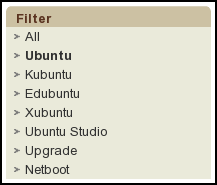
Links to the different flavors of Ubuntu are present in left-hand menu.
Starting a test
ISO test cases normally last for at least half an hour. To avoid duplicating efforts, it is good to let others know that you have started a test case.
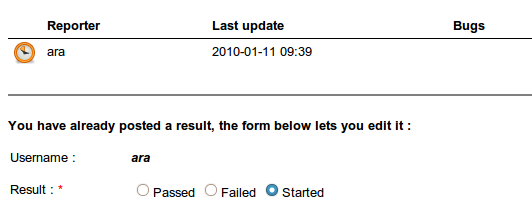
To mark a test as "Started" select the result "Started" and submit the result. It will show up in the list with a "clock" icon.
Adding test reports
When you have conducted a test you can report the results in the ISO tracker with a general comment and bug numbers if applicable.

You can mark a test as Passed or Failed. In the ISO test tracker we mark as failures those experiences that prevented us to do what we wanted to achieve in that test case. I.e. If we want to install, and the partition manager fails, that's a failure. If we do install (or can access to the Live environment, as in this case), the test didn't fail as such. We would mark that as success, but will link the non-critical bugs that we find.
When reporting a broken image it is important that you check the that md5sum corresponds to the ISO being tested to confirm that you do indeed have the correct ISO and that it is not corrupted. To check the md5sum of your image, open a terminal and execute:
md5sum imagename.iso
Where "imagename.iso" is the name of the iso image that you have downloaded and want to verify. The reference value can be found in a file named MD5SUMS in the ISO image download directory. If the md5sum is correct you may also want to run the CD self test on the install media you used.
Bugs
As with all testing it is important to file bugs. If you find a bug, please, search if it has already been reported, and if it hasn't, report it yourself. You should also refer to the bug filing/debugging guide for that specific package (if available) to make sure you are aware of known issues and have attached the relevant log files.
To mark a test as Failed it is mandatory to link the test report with at least one bug in Launchpad. The tracker needs you to type the Launchpad.net bug number. For example: 123456789
Testing/ISO/Procedures (last edited 2013-06-04 22:06:26 by CPE-58-168-89-180)