LiveCDInstall
|
Size: 850
Comment:
|
Size: 2640
Comment: rearranging
|
| Deletions are marked like this. | Additions are marked like this. |
| Line 7: | Line 7: |
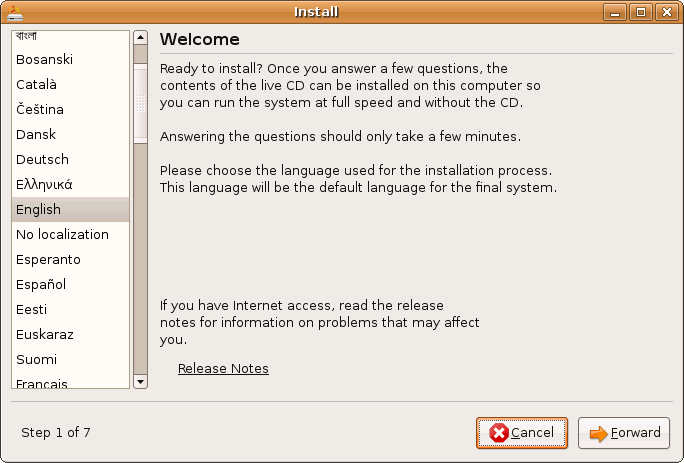
| Screenshots of the differing Ubiquity installers. ||<tablestyle="float:center; font-size: 0.75em; background:#C2B8A1;margin: 0 0 1em 1em;" style="padding:0.5em;">[https://wiki.ubuntu.com/Testing/Cases/LiveCDInstall?action=AttachFile&do=get&target=uu1.png https://wiki.ubuntu.com/Testing/Cases/LiveCDInstall?action=AttachFile&do=get&target=uu1-tn.png][https://wiki.ubuntu.com/Testing/Cases/LiveCDInstall?action=AttachFile&do=get&target=uu2.png https://wiki.ubuntu.com/Testing/Cases/LiveCDInstall?action=AttachFile&do=get&target=uu2-tn.png][https://wiki.ubuntu.com/Testing/Cases/LiveCDInstall?action=AttachFile&do=get&target=uu3.png https://wiki.ubuntu.com/Testing/Cases/LiveCDInstall?action=AttachFile&do=get&target=uu3-tn.png][https://wiki.ubuntu.com/Testing/Cases/LiveCDInstall?action=AttachFile&do=get&target=uu4.png https://wiki.ubuntu.com/Testing/Cases/LiveCDInstall?action=AttachFile&do=get&target=uu4-tn.png][https://wiki.ubuntu.com/Testing/Cases/LiveCDInstall?action=AttachFile&do=get&target=uu5.png https://wiki.ubuntu.com/Testing/Cases/LiveCDInstall?action=AttachFile&do=get&target=uu5-tn.png][https://wiki.ubuntu.com/Testing/Cases/LiveCDInstall?action=AttachFile&do=get&target=uu6(m-a).png https://wiki.ubuntu.com/Testing/Cases/LiveCDInstall?action=AttachFile&do=get&target=uu6(m-a)-tn.png][https://wiki.ubuntu.com/Testing/Cases/LiveCDInstall?action=AttachFile&do=get&target=uu7.png https://wiki.ubuntu.com/Testing/Cases/LiveCDInstall?action=AttachFile&do=get&target=uu7-tn.png]|| || Ubuntu complete with Migration-Assistant Click to zoom || |
|
| Line 12: | Line 17: |
| 1. Select one of the following partitioning methods: '''erase disk''', '''auto-resize''', '''manual partitioning'''. See [:Testing/InstallMethods:InstallMethods] for details. | 1. Select one of the following partitioning methods: '''Guided auto-resize''' (Dual boot option), '''Guided erase disk''' (Ubuntu only install), '''Guided largest continuous free space''', '''Manual partitioning''' (Create the partitioning your way). See [:Testing/InstallMethods:InstallMethods] for details. * Depending on your existing disk contents, the '''auto-resize''' option may not appear. |
Summary
Install from the Live CD using one of 3 partitioning methods.
Screenshots of the differing Ubiquity installers.
![https://wiki.ubuntu.com/Testing/Cases/LiveCDInstall?action=AttachFile&do=get&target=uu1-tn.png][https://wiki.ubuntu.com/Testing/Cases/LiveCDInstall?action=AttachFile&do=get&target=uu2.png](https://wiki.ubuntu.com/Testing/Cases/LiveCDInstall?action=AttachFile&do=get&target=uu1-tn.png][https://wiki.ubuntu.com/Testing/Cases/LiveCDInstall?action=AttachFile&do=get&target=uu2.png)
![https://wiki.ubuntu.com/Testing/Cases/LiveCDInstall?action=AttachFile&do=get&target=uu2-tn.png][https://wiki.ubuntu.com/Testing/Cases/LiveCDInstall?action=AttachFile&do=get&target=uu3.png](https://wiki.ubuntu.com/Testing/Cases/LiveCDInstall?action=AttachFile&do=get&target=uu2-tn.png][https://wiki.ubuntu.com/Testing/Cases/LiveCDInstall?action=AttachFile&do=get&target=uu3.png)
![https://wiki.ubuntu.com/Testing/Cases/LiveCDInstall?action=AttachFile&do=get&target=uu3-tn.png][https://wiki.ubuntu.com/Testing/Cases/LiveCDInstall?action=AttachFile&do=get&target=uu4.png](https://wiki.ubuntu.com/Testing/Cases/LiveCDInstall?action=AttachFile&do=get&target=uu3-tn.png][https://wiki.ubuntu.com/Testing/Cases/LiveCDInstall?action=AttachFile&do=get&target=uu4.png)
![https://wiki.ubuntu.com/Testing/Cases/LiveCDInstall?action=AttachFile&do=get&target=uu4-tn.png][https://wiki.ubuntu.com/Testing/Cases/LiveCDInstall?action=AttachFile&do=get&target=uu5.png](https://wiki.ubuntu.com/Testing/Cases/LiveCDInstall?action=AttachFile&do=get&target=uu4-tn.png][https://wiki.ubuntu.com/Testing/Cases/LiveCDInstall?action=AttachFile&do=get&target=uu5.png)
![https://wiki.ubuntu.com/Testing/Cases/LiveCDInstall?action=AttachFile&do=get&target=uu5-tn.png][https://wiki.ubuntu.com/Testing/Cases/LiveCDInstall?action=AttachFile&do=get&target=uu6(m-a).png](https://wiki.ubuntu.com/Testing/Cases/LiveCDInstall?action=AttachFile&do=get&target=uu5-tn.png][https://wiki.ubuntu.com/Testing/Cases/LiveCDInstall?action=AttachFile&do=get&target=uu6(m-a).png)
![https://wiki.ubuntu.com/Testing/Cases/LiveCDInstall?action=AttachFile&do=get&target=uu6(m-a)-tn.png][https://wiki.ubuntu.com/Testing/Cases/LiveCDInstall?action=AttachFile&do=get&target=uu7.png](https://wiki.ubuntu.com/Testing/Cases/LiveCDInstall?action=AttachFile&do=get&target=uu6(m-a)-tn.png][https://wiki.ubuntu.com/Testing/Cases/LiveCDInstall?action=AttachFile&do=get&target=uu7.png)
Procedure
- Boot from the Live CD (or continue on from the Live CD test)
- Click the install icon on the desktop
- Select your language, location, and keyboard layout
Select one of the following partitioning methods: Guided auto-resize (Dual boot option), Guided erase disk (Ubuntu only install), Guided largest continuous free space, Manual partitioning (Create the partitioning your way). See [:Testing/InstallMethods:InstallMethods] for details.
Depending on your existing disk contents, the auto-resize option may not appear.
Test the migration assistant feature if you have an existing OS installed. See ["../MigrationAssistant"] for instructions (currently only on Ubuntu and Edubuntu)
Complete the install and reboot to verify that the system works as expected using the appropriate test: ["../UbuntuDesktop"], ["../KubuntuDesktop"], ["../EdubuntuDesktop"], ["../XubuntuDesktop"]
Testing/Cases/LiveCDInstall (last edited 2009-02-05 15:34:29 by port-213-160-23-156)