LiveCDInstall
|
Size: 850
Comment:
|
Size: 2683
Comment: converted to 1.6 markup
|
| Deletions are marked like this. | Additions are marked like this. |
| Line 1: | Line 1: |
| [[Include(Testing/Cases/Header)]] | <<Include(Testing/Cases/Header)>> |
| Line 6: | Line 6: |
Screenshots of the differing Ubiquity installers. ||<tablestyle="float:center; font-size: 0.75em; background:#C2B8A1;margin: 0 0 1em 1em;" style="padding:0.5em;">[[https://wiki.ubuntu.com/Testing/Cases/LiveCDInstall?action=AttachFile&do=get&target=uu1.png|{{https://wiki.ubuntu.com/Testing/Cases/LiveCDInstall?action=AttachFile&do=get&target=uu1-tn.png}}]][[https://wiki.ubuntu.com/Testing/Cases/LiveCDInstall?action=AttachFile&do=get&target=uu2.png|{{https://wiki.ubuntu.com/Testing/Cases/LiveCDInstall?action=AttachFile&do=get&target=uu2-tn.png}}]][[https://wiki.ubuntu.com/Testing/Cases/LiveCDInstall?action=AttachFile&do=get&target=uu3.png|{{https://wiki.ubuntu.com/Testing/Cases/LiveCDInstall?action=AttachFile&do=get&target=uu3-tn.png}}]][[https://wiki.ubuntu.com/Testing/Cases/LiveCDInstall?action=AttachFile&do=get&target=uu4.png|{{https://wiki.ubuntu.com/Testing/Cases/LiveCDInstall?action=AttachFile&do=get&target=uu4-tn.png}}]][[https://wiki.ubuntu.com/Testing/Cases/LiveCDInstall?action=AttachFile&do=get&target=uu5.png|{{https://wiki.ubuntu.com/Testing/Cases/LiveCDInstall?action=AttachFile&do=get&target=uu5-tn.png}}]][[https://wiki.ubuntu.com/Testing/Cases/LiveCDInstall?action=AttachFile&do=get&target=uu6(m-a).png|{{https://wiki.ubuntu.com/Testing/Cases/LiveCDInstall?action=AttachFile&do=get&target=uu6(m-a)-tn.png}}]][[https://wiki.ubuntu.com/Testing/Cases/LiveCDInstall?action=AttachFile&do=get&target=uu7.png|{{https://wiki.ubuntu.com/Testing/Cases/LiveCDInstall?action=AttachFile&do=get&target=uu7-tn.png}}]]|| || Ubuntu complete with Migration-Assistant Click to zoom || |
|
| Line 12: | Line 17: |
| 1. Select one of the following partitioning methods: '''erase disk''', '''auto-resize''', '''manual partitioning'''. See [:Testing/InstallMethods:InstallMethods] for details. 1. Test the migration assistant feature if you have an existing OS installed. See ["../MigrationAssistant"] for instructions (currently only on Ubuntu and Edubuntu) 1. Complete the install and reboot to verify that the system works as expected using the appropriate test: ["../UbuntuDesktop"], ["../KubuntuDesktop"], ["../EdubuntuDesktop"], ["../XubuntuDesktop"] |
1. Select one of the following partitioning methods: '''Guided auto-resize''' (Dual boot option), '''Guided erase disk''' (Ubuntu only install), '''Guided largest continuous free space''', '''Manual partitioning''' (Create the partitioning your way). See [[Testing/InstallMethods|InstallMethods]] for details. * Depending on your existing disk contents, the '''auto-resize''' option may not appear. 1. Test the migration assistant feature if you have an existing OS installed. See [[../MigrationAssistant]] for instructions (currently only on Ubuntu and Edubuntu) 1. Complete the install and reboot to verify that the system works as expected using the appropriate test: [[../UbuntuDesktop]], [[../KubuntuDesktop]], [[../EdubuntuDesktop]], [[../XubuntuDesktop]] |
Summary
Install from the Live CD using one of 3 partitioning methods.
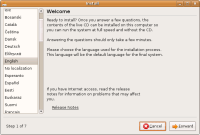
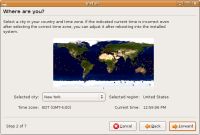
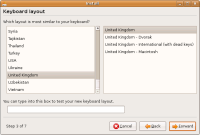
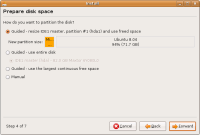
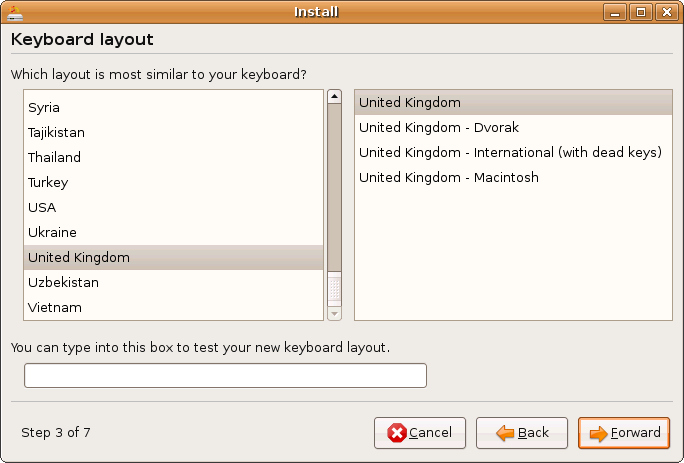
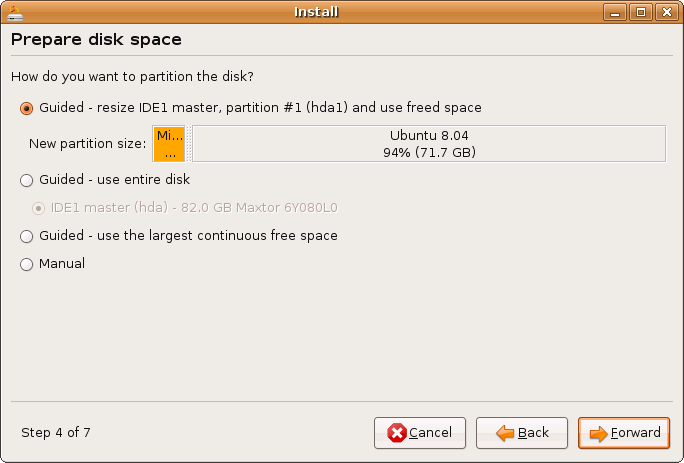
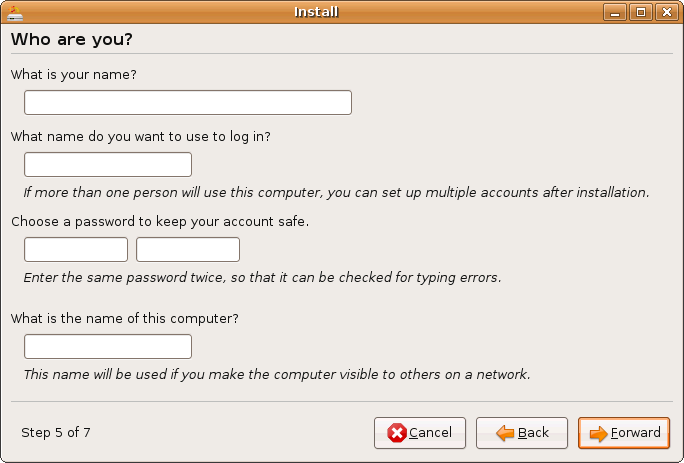
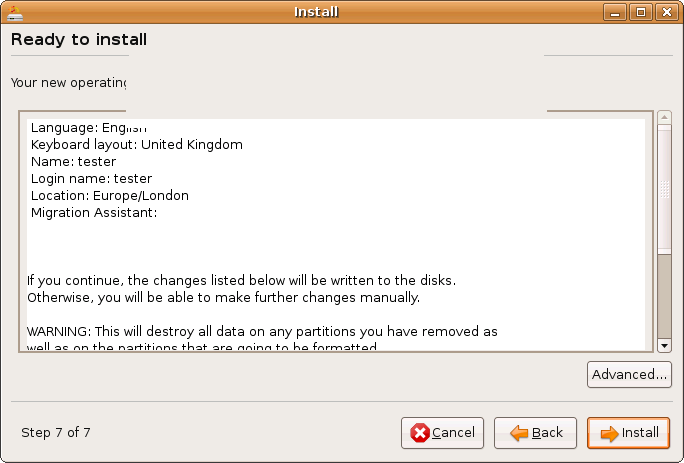
Screenshots of the differing Ubiquity installers.
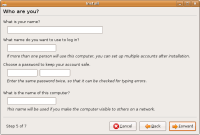
-tn.png "https://wiki.ubuntu.com/Testing/Cases/LiveCDInstall?action=AttachFile&do=get&target=uu6(m-a).png")
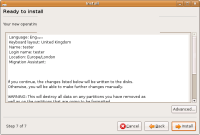
Ubuntu complete with Migration-Assistant Click to zoom
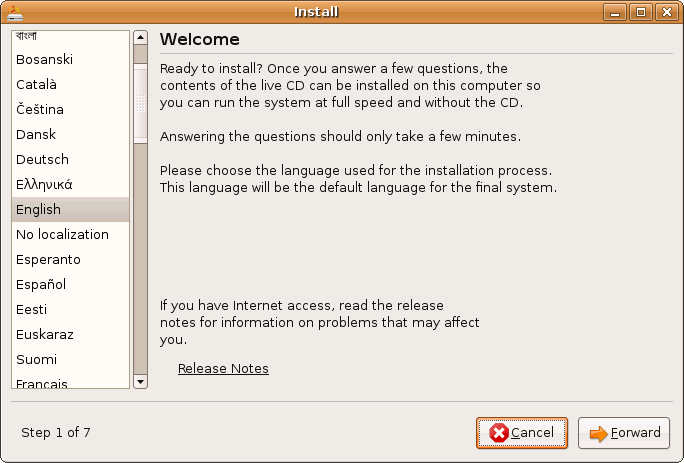
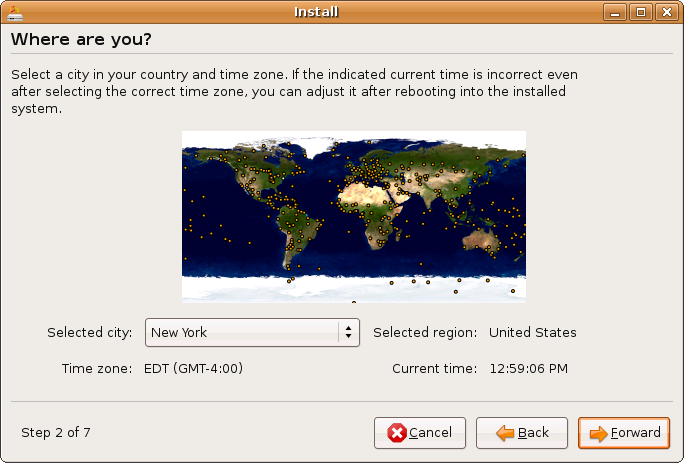
.png "https://wiki.ubuntu.com/Testing/Cases/LiveCDInstall?action=AttachFile&do=get&target=uu6(m-a).png")
Procedure
- Boot from the Live CD (or continue on from the Live CD test)
- Click the install icon on the desktop
- Select your language, location, and keyboard layout
Select one of the following partitioning methods: Guided auto-resize (Dual boot option), Guided erase disk (Ubuntu only install), Guided largest continuous free space, Manual partitioning (Create the partitioning your way). See InstallMethods for details.
Depending on your existing disk contents, the auto-resize option may not appear.
Test the migration assistant feature if you have an existing OS installed. See ../MigrationAssistant for instructions (currently only on Ubuntu and Edubuntu)
Complete the install and reboot to verify that the system works as expected using the appropriate test: ../UbuntuDesktop, ../KubuntuDesktop, ../EdubuntuDesktop, ../XubuntuDesktop
Testing/Cases/LiveCDInstall (last edited 2009-02-05 15:34:29 by port-213-160-23-156)