SoftwareUpdates
|
Size: 32250
Comment: use the normal primary text for daily/alpha/beta versions
|
Size: 33684
Comment: icons for updates shouldn't have the installed emblem
|
| Deletions are marked like this. | Additions are marked like this. |
| Line 187: | Line 187: |
| * [[SoftwareCenter#software-icon|the icon]] for the update; * [[SoftwareCenter#software-title|the title]] of the update. |
* [[SoftwarePackageOperations#icon|the icon]] for the package, ''except'' that currently-installed packages should not have the usual installed emblem (because it’s noisy and uninteresting that nearly all updates are to already-installed packages); * [[SoftwarePackageOperations#title|the title]] of the update. |
| Line 243: | Line 243: |
== Menus == When Software Updater is visible in any state, even just an alert box, it should have these menus. {{{ _File ===== Check For Updates Ctrl R ---------------------------- Updates History Ctrl H }}} “Check For Updates” should always be sensitive, except when a check is currently in progress. It should check again for updates without closing and reopening Software Updater. {{{ _Edit ===== Undo Ctrl Z Redo Shift Ctrl Z -------------------------------- Copy Ctrl C Select All Ctrl A Select None Shift Ctrl A -------------------------------- Find… Ctrl F -------------------------------- Software & Updates Settings… }}} “Undo” and “Redo” should be sensitive only when there is a selection or deselection that can be undone or redone, respectively. “Copy” should be sensitive whenever any update or detail text is selected. “Select All” and “Select None” should be sensitive whenever at least one update is available (fixing bug 878203). {{{ _Help ===== _Help Using Software Updater -------------------------------- _About Software Updater }}} |
Packages affected: software-properties, update-manager, update-notifier, ubuntu-release-upgrader
This is a living specification for how Ubuntu should present, download, and install software updates. It is part of Ubuntu’s overall software handling.
Our presentation of software updates should carefully balance promptness against interruption, and automation against informed consent, to maximize the prompt installation of updates across the millions of computers on which Ubuntu is installed.
How you can help
This specification includes many small changes and enhancements to the current update behavior, but they can be implemented in any order. Grab the code and submit your own branch.
Contents
- How you can help
- Update settings
- Checking for updates automatically
- Downloading and installing updates automatically
- Launching
- Handling uninstallable updates
- Presenting installable updates
- Installing
- After installing
- Installing updates automatically when you can’t login
- Upgrading to a new Ubuntu version
- Menus
- User stories
- Design considerations
- Overall approaches considered
- Ideas
- Unresolved issues
Update settings
|
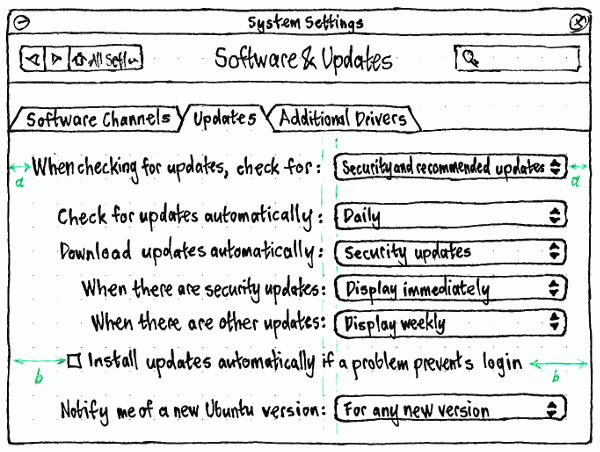
The “When checking for updates, check for:” menu should contain options for “All updates” (the default, -security + -updates + -backports), “Security and recommended updates” (-security + -updates), and “Security updates only” (-security) (fixing bug 887079). If your current update config does not match one of those three options (for example, if you have opted in to -proposed), there should be a fourth, checked, option: “Custom”, and this option should persist until you close System Settings. (UI for configuring -proposed should be provided by the Ubuntu Contributor Console.)
The “Automatically check for updates:” menu should contain options for “Daily” (the default), “Every two days”, “Weekly”, “Every two weeks”, a separator, and “Never”.
The “When there are security updates:” menu should contain options “Display immediately” (the default), “Download automatically”, and “Download and install automatically”.
The “When there are other updates:” menu should contain options “Display immediately”, “Display weekly” (the default), and “Display every two weeks”.
The “Notify me of a new Ubuntu version:” menu should contain options “For any new version” (the default for a non-LTS, replacing “Normal releases”), “For long-term support versions” (the default for an LTS, replacing “Long term support releases only”), and “Never”, in that order.
Idea: Make this more predictable by letting you specify which day of the week it opens. [mvo]
Checking for updates automatically
If “Automatically check for updates” is checked, Ubuntu should become due to check for updates at the specified interval after updates were last checked. Once it is due to check for updates, it should try to check one minute after the first time any administrator connects to the Internet (fixing bug 323108). By default, it should not display any interface while checking.
What if broken proxy rules etc prevent successful checks indefinitely?
Downloading and installing updates automatically
If “When there are security updates” is set to “Download automatically” or “Download and install automatically”, and security updates are available, they should download in the background.
Launching
The Launcher icon for Software Updater should not use a badge, because (unlike with opt-in updates) the number of system updates available is not interesting.
Launching manually
Launching Software Updater manually should immediately begin an interactive check for updates, without showing any other interface beforehand (invalidating bug 289404).
Checking manually
When checking interactively, Software Updater should display only a progress window. As with any other progress window, the window should have a minimize button but no maximize or close button, and should be 33 em wide.
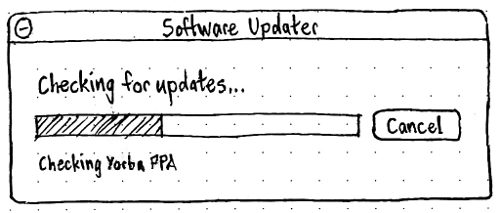
Erratum: The “Cancel” button should read “Stop”, since it’s possible a partial or previous check may have some available updates.
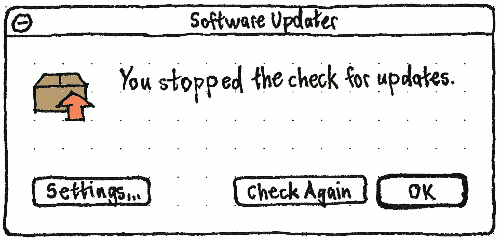
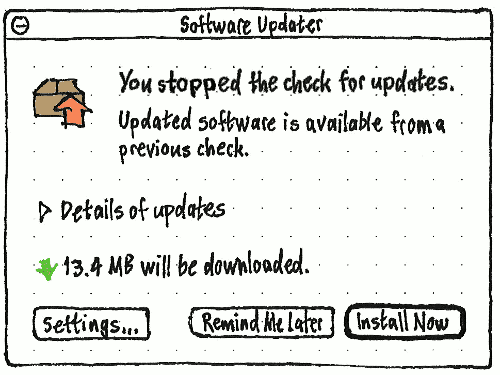
If you stop the check, the progress window should morph into an info alert with the title “Software Updater” and primary text “You stopped the check for updates.”. If the partial check, and any previous check, found no installable updates, this should be followed simply by “Settings…”, “Check Again”, and “OK” buttons. But if the partial check, and any previous check, did find installable updates, the alert should be a variation of the updates-available alert, with the different primary text, and secondary text “Updated software is available from a previous check.”.
|
|
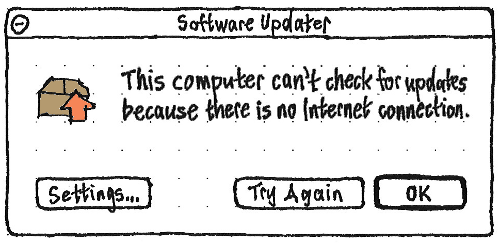
If the check fails because of an error, the progress window should morph into an error alert, with the title “Software Updater” and primary text depending on the exact situation.
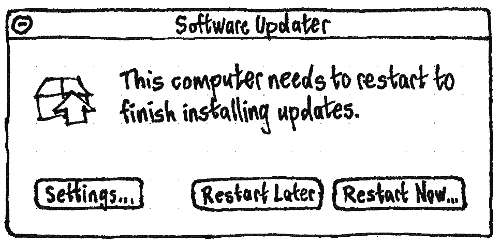
If no updates are available, but previous updates require a restart, the progress window should morph into the restart-required alert.
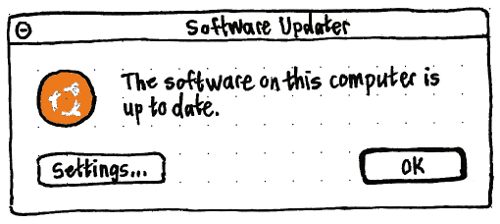
If no updates are available and no previous updates require a restart, the progress window should morph into a note alert.
If updates are available, the progress window should instead morph into the “Updates Available” alert.
Launching automatically
Update Manager should launch automatically, in the background but not minimized, when the computer has been connected to the Internet for at least one minute (bug 385433), you are logged in as an administrator, and either:
security updates are available, it has been at least 24 hours since security updates were last displayed, and either of these are true:
- “When there are security updates” is set to “Display immediately”; or
- “When there are security updates” is set to “Download automatically”, and the security updates have finished downloading; or
b. non-security updates are available, and all of these are true:
- the “When there are other updates” interval has passed since Software Updater was last open (either automatically or manually);
the “When there are other updates” interval has passed since updates were last installed by any manual method (e.g. apt-get or Synaptic, but not unattended-upgrades);
no other package management utility (e.g. Synaptic or Ubuntu Software Center) is running.
Test case: (su-001)