SoftwareCenter
This is a work-in-progress specification for the utility that was previously codenamed AppCenter. Your feedback is welcome at SoftwareStore/Comments.
Launchpad entry: software-library
Created: 2005-08-29 by MatthewPaulThomas
Packages affected: aptoncd, computer-janitor, computer-janitor-gtk, gdebi, gnome-app-install, software-properties-gtk, software-store, synaptic, update-manager
The Ubuntu Software Store will be a single graphical interface for package management in Ubuntu. In version 1, it will build on the basic philosophy of Add/Remove Applications and make it even easier to use. In later versions, it will grow to replace Synaptic, gdebi, some parts of the Computer Janitor, and possibly Update Manager. Having a single interface will make handling software easier, socially improve security, hopefully free space on the CD, and provide a prominent showcase for Ubuntu and partner software. The implementation is based on Add/Remove Applications (gnome-app-install), but may use PackageKit for some components. Software Store is hosted in Launchpad.
How you can help
We welcome useful contributions from anyone, regardless of age, gender, or experience.
If your expertise is in one of these areas, search through this specification for the color-coded sections relevant to you:
Artists |
Copy-editors |
GTK developers |
Interface designers |
Librarians |
Packagers |
Otherwise, if you are a Python programmer, get the latest code, look through this specification for a feature or behavior that hasn’t been implemented yet, implement it, and propose it for merging.
If you are a tester, look through this specification and compare the behavior described to the behavior you see in the latest version. If something has been implemented but behaves differently from how the specification describes it, report a bug if it hasn’t been reported already.
Contents
- How you can help
- Rationale
- Ubuntu Software Store 1.0
- Specifications for features not planned for 1.0
- Roadmap
- Eventual scope
- User stories
- Design scratchpad
- Implementation
- Similar efforts
- Unresolved issues
Rationale
In Ubuntu 9.04, there are at least four graphical utilities promoted for installing and removing software. For installing and uninstalling graphical applications you can use “Add/Remove Applications“ or the more technical “Synaptic Package Manager”, though the former warns you to use the latter “for more complicated needs”. For installing and uninstalling other software, you must use Synaptic. For installing updates, the usual route is Update Manager, but it instructs you to run Synaptic if it encounters conflicts. For configuring where these utilities look for software, you use “Software Sources”. For installing downloaded .deb packages, you use gdebi. And for removing no-longer-needed software, you use Computer Janitor. This redundancy increases the amount of interface people have to learn, wastes space on the Ubuntu CD, and fragments development effort. Having multiple sanctioned graphical methods of installing software also makes people more likely to think that unsanctioned methods (such as Ultamatix or third-party Web sites) are also safe, when they are not. Meanwhile, the descriptions of available software are often technical gibberish. And many software project and vendor Web sites either provide command-line installation instructions (dulling users to malicious terminal commands from other sources) or .tar.gz downloads that are difficult to install and near-impossible to update.
Instead, there should be one obvious mechanism for installing, removing, and updating software in Ubuntu, with a self-evident name and an interface a grandmother can use. There should be a coordinated system for developers and enthusiasts to improve the usefulness of descriptions and other metadata for software packages. The software updates interface should be honed to maximize the voluntary installation of updates across the millions of computers on which Ubuntu is installed. And projects and vendors whose software is packaged for Ubuntu should be encouraged to provide links to their software’s presence in the Software Store, instead of command-line installation instructions.
If Linux has an Achilles heel, from the point of view of a Windows user, it's installing new software. Be prepared to enter a new world in which Windows Update is a model of simplicity by comparison, and in which you may feel as if you need a Ph.D. in physics merely to install new applications or updates. |
First there is the Add/Remove Applications program, which is designed to allow you to Add and Remove Applications. Second, there is the Synaptic Package Manager, which allows you to Manage Packages (in a manner that is uniquely synaptic, apparently) or Applications as some might call them, by allowing you to Add and Remove them. Finally there is Software Sources, which, if Wine’s installation instructions are any indication, provides Sources of Software, filling a glaring gap in Ubuntu Linux by allowing you to Add and Remove Applications. |
Ubuntu Software Store 1.0
In this specification, 1 em means the height of the Gnome application font setting. (For example, if the current Gnome application font setting works out to be 12 pixels, then 3 em = 36 pixels.) The term leading means “left” whenever the system is using a left-to-right language, and “right” whenever the system is using a right-to-left language. The term trailing means “right” whenever the system is using a left-to-right language, and “left” whenever the system is using a right-to-left language. All mockups in this specification are of left-to-right layouts.
System nomenclature
In application menus etc, the Store should appear as “Ubuntu Software Store”. The package name and executable name should both be software-store.
Invocation
Launching graphically
“Ubuntu Software Store” should be a top-level item in the “System” menu, immediately after “Administration” but before the following separator. It should not be present anywhere in the “Applications” menu. [Idea #12193: Add/Remove and Synaptic should be strongly displayed to new users]
Artists |
We need an icon for the Software Store! It should be vector artwork, moderately recognizable at small sizes, but interesting at huge sizes (e.g. on a poster). It should convey the idea of thousands of available applications. And it should not look like a cartoon. Present your artwork on the icons wiki page. Thanks! |
How do we specify performance requirements? Also need to specify progress feedback if launching is slow.
When opened directly, the Store should by default display the home panel of the “Get Free Software” section, scrolled to the top. The search field should be empty. Default focus should be on the home panel, so that arrow keys scroll through the panel, but none of the items in the panel should be focused by default.
Launching from the command line
software-store should launch the Store to its default view. software-store package-name or software-store apt:package-name should open the Store to display that package, if it is both an application and present in repositories that the Store is configured to display. If it is not — for example, if it is in Universe, while the Store is set to display “Canonical-Maintained Applications” — the Store should not appear, and should exit immediately with an error.
apt: links
Whenever an apt: link is opened, gdebi should try to launch the Software Store to the requested package. If the Store returns an error (for example, because the package is not a visible application, or is an application in Universe when the Store is set not to show applications from Universe), gdebi should display its own interface as usual.
In version 2.0, the Store will replace gdebi completely.
Overall interface
The Store should use a normal window, with the title “Ubuntu Software Store”.
default window size and placement TBD
Menus
_File
=====
  _Install   Ctrl Enter
  _Remove
-----------------------
  _Close     Ctrl W
“Install” and “Remove” should be disabled by default. “Close” should, by default, exit the Software Store without prompting.
_Edit
=====
  _Copy                     Ctrl C
  Copy _Web Link      Shift Ctrl C
-----------------------------------
  Searc_h…                  Ctrl F
-----------------------------------
  _Software Sources…
“Copy” and “Copy Web Link” should be disabled by default.
“Search…” should focus the search field, and (even if it is focused already) select its entire contents.
“Software Sources…” should open the Software Sources control panel, or focus it if it is already open.
_View
=====
* All Applications
  Canonical-Maintained Applications
Should behavior be defined here, or in each section?
_Help
=====
  Ubuntu Software Store _Help…
--------------------------------
  _About This Version
By default, “Ubuntu Software Store Help…” should open the help viewer to the front page of the help.
“About This Version” should open the About window, or focus it if it is already open.
Navigation pane
The navigation pane should have a vertical scrollbar only when necessary, and should never have a horizontal scrollbar. Instead, each item inside it should be ellipsized at its trailing end whenever there is not enough room to show it completely.
The navigation pane should list the top-level sections that can be navigated to, each with a text-size icon and a label:
“Get Free Software”, with the same icon as the Software Store itself;
“Installed Software”, with an icon of a computer;
- an 0.5-em gap;
“In Progress”, visible only when packages are being installed/uninstalled/reinstalled, with an animated icon of two green semicircular arrows chasing each other clockwise.
Artists |
We need this icon of the chasing arrows. Can you draw it? If you can, please upload it to the icons wiki page. Thanks! |
In future versions the navigation pane will contain other items, such as currently-inserted CDs/DVDs, child items for free vs. paid software, and perhaps user-created collections.
Only one item in the navigation pane should be selected at a time. Whenever the Software Store is launched, this should be the “Get Free Software” item. Single-clicking an item should select it and immediately change the visible section. Double-clicking should behave identically to single-clicking, and secondary-clicking or dragging should do nothing.
“Get Free Software” section
The “Get Free Software” section encompasses a home panel, panels for each category, and panels for individual applications. Navigating to the “Get Free Software” section should display whichever panel was last open in that section in that session. Test case: In the “Get Free Software” section, navigate to the AbiWord application. In the navigation pane click on “Installed Software”, then on “Get Free Software”. The Store should return to displaying AbiWord.
Home panel

The home panel is the entry point to the world of available software for Ubuntu, so it is important that it be attractive and welcoming.
The background of the home panel should be grey-blue 182,189,196 (#b6bdc4), and all text on the panel should be black 0,0,0 (#000000). The padding between the edges of the panel and its contents should be 1 em, both horizontally and vertically.
The home panel has multiple sections, each beginning with a header. The header should use a background... TBD Each section, including the last, should have a bottom margin of 2 em.
Each item (category or package) in the home panel should have an icon and a name. If the icon is scalable, or larger than 4 em in either dimension, it should be scaled down proportionally so that it is 4 em in its largest dimension. If the icon is smaller than 4 em in both dimensions, it should be drawn at actual size and centered (both horizontally and vertically) inside a 4 em square that has a 0.05-em-wide border of color 170,170,170 (#aaaaaa). Underneath it, the name of the item should be printed in 0.8-em text that is horizontally centered but top-aligned in its own block.
Items should be laid out like horizontal text: starting at the leading edge and continuing until there is no room for another on the same line, then wrapping downward.
Each item in the home panel should produce the pointing-hand pointer when moused over, and single-clicking should navigate to that item.
Artists |
What is a more attractive way of presenting these categories? Currently they look very similar to individual applications, but probably they should look different. Perhaps they should use buttons of some sort? Perhaps the clickable element for each category could incorporate small versions of the icons for the most popular applications in that category? Present your ideas under this box. Please sign your name with each idea. Thanks! |
Searching from the Home panel
Each item in the search results should produce the pointing-hand pointer when moused over, and single-clicking should navigate to that item.
“Categories” section
|

The “Categories” section of the panel should list all the categories traditionally shown in Add/Remove Applications (see the menu spec registered categories). The categories should be listed in alphabetical order, except that “Programming” should be second-to-last, and “Other” should be last.
Librarians |
Browse the application categories (in either the Software Store in Karmic, or in “Add/Remove Applications” in a previous version of Ubuntu), and think of better categories for the software, or subcategories for existing categories. For example, what subcategories could the “Games” category have? And as more software integrates with the Internet, the “Internet” category is becoming bloated and less relevant; how could it be redistributed? Write up your ideas on the Categories wiki page. Thanks! |
“Featured this week” section
Category panel

Erratum: The arrow buttons shown for each application should not be present.
Each item in both the icon view and the list view should produce the pointing-hand pointer when moused over, and single-clicking should navigate to that item.
Application panel

“Install” should be enabled whenever you are viewing an application panel for an application that is not currently installed, and “Remove” for an application that is currently installed.
When an individual application is being viewed, the search function should be disabled — both the search field and the “Search” menu item.
The application panel itself should contain:
- The icon for the application, in an 8-em square
- The name of the application, in 1.2-em text of normal weight
- The application description, all in normal text
- The text “Price: Free”
An “Install” button if the application is not currently installed, otherwise the text “<Application Name> is installed on this computer.” with a “Remove” button.
Artists |
We need an emblem to place over the corner of application icons where the application is already installed. This icon should be vivid and highly recognizable at small sizes, but should scale gracefully up to large sizes, so it should be a vector graphic and should not be drawn cartoon-style. Perhaps a slightly 3-D green disc with a white checkmark on it. And it should be clearly distinct from any application icon; this might be achieved using a drop shadow (though we would need a version with no shadow for standalone use). Present your artwork on the icons wiki page. Thanks! |
Copy-editors |
Within the Software Store, examine the name, summary, and description of an application. Is it concise and helpful? Is the spelling and grammar correct? If it’s a non-geek application, does the description avoid geek language? Is it in the appropriate category? If you find a problem, and you are comfortable diving into code to fix it yourself, follow the distributed development instructions with the app-install-data-ubuntu package to fix problems in an application’s name or summary, or the application package itself to fix problems with its description. Otherwise, report a bug with (a) the current text, (b) what needs improving, and (c) your proposed replacement text, and give the bug report the metadata tag. |
Packagers |
Look for bugs that people have reported about inappropriate application summaries, descriptions, or categories, and fix them. |
Packagers |
If a single package contains multiple applications, and people might reasonably want to install these applications separately, work to separate the packages into one per application. Thanks for your help. |
“In Progress” panel

Specifications for features not planned for 1.0
History
Roadmap
This roadmap is a draft.
October 2009
For October 2009, we have four major goals.
- Include in Ubuntu 9.10 a simple and fun interface for finding, installing, and removing software. This will likely involve:
- A new name.
- A highly graphical “main entrance” or “front page”, that allows browsing software by category and subcategory, and perhaps includes featured and/or popular applications.
- Fast and error-tolerant search.
Attractive, informative, and easy-to-understand presentation of individual software packages within the interface (with this presentation also being used for apt: URL links to graphical applications).
- Interactive demonstration of how to launch the software you’ve just installed.
- The ability to continue browsing available software, and queue up installation/removal requests, while other changes are being made.
Better security than the current installation mechanism (i.e. use of PolicyKit instead of gksudo).
Increase use of apt: links by Ubuntu enthusiasts, software projects, and ISVs, replacing terminal commands or standalone downloads. This will likely involve:
A redirector Web service (e.g. redirecting from http://apt.ubuntu.com/package-name to apt:package-name), with helpful handling of error cases, to better cater for people who are not running Ubuntu when they follow the link (and to better cater for forums and other CMSes that do not allow direct apt: links).
- Prominent and highly understandable information on ubuntu.com about how to get your software (whether Free or non-Free) packaged for Ubuntu.
An apt: evangelism campaign for projects that already have their software packaged in the Ubuntu repositories.
- Fine-tune the interface presented when software updates are available. This may involve:
- When updates are presented automatically, collapsing the list of updates by default, concentrating instead on the existence of updates and the choice to install them now or later.
Presentation of the new better descriptions of security updates.
Establish a system within Launchpad for registered users to suggest a better description, category, keywords, and/or screenshot for a software package, and for the package maintainer to incorporate those changes into a new version of the package, so that end users can find the software more easily later.
April 2010
- In Ubuntu 10.04, replace Synaptic, Software Sources, Gdebi, and (if appropriate) Update Manager with an expanded Ubuntu Software Store. This will likely involve:
The ability to see, install, and uninstall non-graphical software (programming utilities, fonts, database software, etc) within the Store if desired.
Opening the Store for all apt: links, not just those of graphical applications.
- Handling of package conflicts and other error cases.
- A collapsed view of the Store that shows only available updates, but is expandable to perform other tasks if desired.
Establish a system within Launchpad to store ratings and reviews of Ubuntu software (whether in official repositories or in participating PPAs), for use in a future version of the Store.
October 2010
- Integrate the ratings and review mechanism from Launchpad into Ubuntu Software Store. This will likely involve:
- An interface within the Store for rating and reviewing software that is installed now (or that has been installed recently).
A mechanism for reporting, and staff for moderating, inappropriate reviews (e.g. those that use offensive language).
- Establish a mechanism for establishing and conveying a trust level for software in PPAs, and for easily adding PPAs within the Store.
- Provide the ability to purchase software from within the Store.
April 2011
- Improve sharing and tracking of software within the Store. For example:
- Overviews of installed software by license, cost, or maintenance timetable.
- Discovering software by what your friends have installed.
- Downloading a package once for installing on many computers.
Incorporating AptOnCD.
- A visible history of past installations/removals/purchases, including the ability to undo specific changes.
- Investigate and, if appropriate, implement specialized interfaces for browsing and installing particular classes of package:
- fonts
- screensavers
Windows applications, etc.
Eventual scope

This is a laundry list of desired features, for the purpose of designing an interface for version 1.0 that will scale to include those features later. It is not a list of features scheduled for 1.0.
You should be able to:
find software by: [idea 18315]
- name
purpose (e.g. “wireframe” → Dia)
category and subcategory (e.g. Games: Card Games) [idea 14857]
name of competitor (e.g. “excel” → OpenOffice.org Spreadsheet, Gnumeric, KSpread)
misspelling (e.g. “pigeon” → Pidgin)
- needed right now (by MIME type, codec, font, etc)
- vendor?
class (debug vs. non-debug, applications vs. not [idea 3144], etc)
- recommendation [Andrew Sayers]
- alternatives to programs you used in Windows (via Migration Assistant)
- software to make use of your custom hardware
results previously returned by command-not-found
habit (people who installed X also installed Y) (suggested by Enrico Zini)
- suite (software for Java developers, software for film makers)
what’s new [idea 13762]
whether it was recently installed or removed [idea 16953]
- find software sources (Launchpad PPAs)
- and know how trusted each PPA is
- get information about software
- what it does
what people think of it (ratings and reviews) [UserReviewsInSynaptic] [idea 18729]
what it looks like (screenshots or short videos) [idea 15774]
what the current version number is [idea 13036]
- whether it is installed by default in Ubuntu
whether it’s installed right now [idea 19068]
if it’s installed, how to launch it [idea 16216]
if it’s not installed, how much there is to download, including dependencies [idea 4613]
- whether it’s localized into your native language
- what it costs
- what its license is
- who provides updates for it, and for how long
- who provides tech support for it, and for how long
- how many of your friends have it installed already
- whether you have it installed already (and if so, how to find it)
- … all in your native language
- install software
purchasing commercial software [idea 18538]
- quickly
- unpack — and maybe even install — downloaded packages while downloading the rest
download a package only once when installing it over a LAN [idea 19265]
- asynchronously (browse and select more stuff while other stuff is installing)
pausing if you need to use your bandwidth for something else [idea 16643]
- downloading it once for multiple computers (subsuming APTonCD)
- read about updates while they are installing
using PolicyKit to install/uninstall/etc, but not needing authorization to update package lists
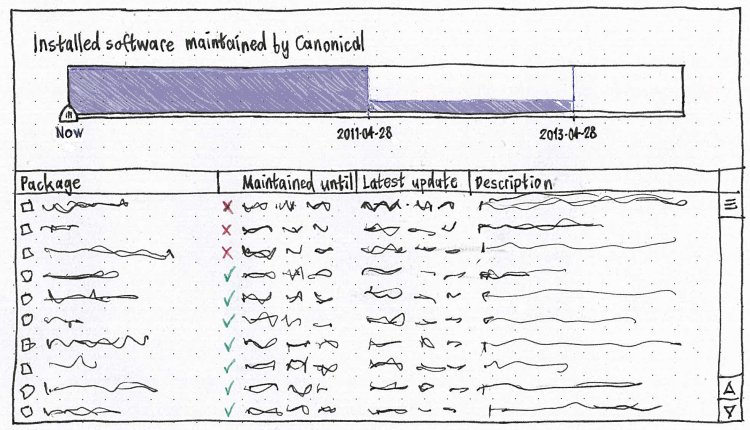
- get an overview of installed software
- how much is maintained for how long
- how much receives tech support from whom, and for how long
- how much is under which license
even applications you installed from a .deb or compiled yourself [idea 18408]
- upgrade to the next version of Ubuntu
- know why you should upgrade
- without breaking PPAs
- insert an Ubuntu CD in Ubuntu and get an understandable result
User stories
Joel wants to install Skype. He goes to skype.com, finds the "Download for Ubuntu" button, and clicks it. He doesn't know what a “package” is, let alone a “.deb” or a “repository”.
- Melatie runs an accounting business that is far too small to have its own IT manager. She has a support contract for the Ubuntu software on the office PCs, and she knows that this doesn’t cover all the available software, so she wants to keep track of exactly what software is installed that isn’t covered.
- Sam is a college student who has recently migrated from to Windows XP to Ubuntu because he was fed up with adult sites installing spyware on his computer. The reason he had so much trouble with spyware was that XP kept on popping up balloons in the corner of the screen to tell him about security updates, but he closed them because that was the easiest thing to do. A few weeks after he installs Ubuntu, there is an important security update to Firefox.
Ladina works as a developer at a molecular biology lab where she is not a sysadmin. She is having a bit of trouble with Biopython, and wants an easy way of seeing which version of python-biopython is installed and where its files are.
- Helen is happily using Ubuntu 10.04 when it tells her that Ubuntu 10.10 has been released. Before she upgrades, she has some basic questions. What will the upgrade do? How long will it take? How much will it cost? Will she lose any of her files? What should she do if something goes wrong?
Design scratchpad
Access
- codec search
font search [idea 15333]
Initial appearance
Dynamically filtered view of programs or packages:
Show: [Programs installable :^] Containing: [______________]
- Menu choices are:
- Programs available (default when invoked manually)
- Programs already installed
- Packages available
- Packages installed
- Security updates (search field replaced by "Updates available" text)
- All updates
- Changes to be made
- Items in the list have iconic pull-down menus that look like menus, not checkboxes.
- Recommendations and suggestions are shown as children of an item in the list (recommendations selected by default, suggestions not).
- Multi-level undo.
- Updates are aggregated by source package, with packages hidden inside an expander.
Incorporate PackageMaintainednessPresentation, including its “Future work”
Implementation
Code
Data preservation and migration
Similar efforts
Unresolved issues
- Need to make clear which packages are currently subject to CVE vulnerabilities
OpenPrinting: “To make installing printer drivers not provided by the Linux distributions easier for users, and to make providing printer drivers easier for the printer manufacturers, we have introduced a new concept of distribution-independent printer driver packages.”
- While installing, the window should be reducible (or perhaps reduce by default) to show only install progress.
- The “You need to restart the computer” alert could be merged into the main window.
Need to explain the ramifications of removing ubuntu-desktop (or its future equivalent).
- How do distinguish security updates from other updates?
- Popularity measurements are skewed by default installs.
- How can we reduce/eliminate the lag between an update being published and its description being available?
- Warn about trying to install updates while running on battery?
http://www.enricozini.org/2007/debtags/package-managers.html
- Check for security updates every day. But check for non-security updates only (a) a week after the last check or (b) when security updates are available, whichever is earlier. [mac_v]
http://www.finette.co.uk/blog/index.php/2009/04/on-rating-mechanisms/
- If you have Wine installed, there could be a separate category for “Installed Windows Programs”. However, it’s important to communicate that Windows programs are installed just for you, whereas all the other programs are installed for everyone on the system.
This could also apply to other applications installed only for you. http://brainstorm.ubuntu.com/idea/6816/
- Alternatively, the Store could also install wine programs globally to avoid installing the same programs locally multiple times
- Wine doesn't yet support system-wide installation or multiple users using the same apps simultaneously, however.
Whether an update will require restarting, or logging out, should be presented before you choose to install it.
- There should be a history of changes made recently.
- We should collect statistics on how many people install updates how quickly. [Oli Warner]
- Upstreams or other interested parties should be able to get an RSS feed of the reviews/ratings people publish about applications. [Lars Wirzenius]
“Also a permalink on the description page, would be pretty nice. You want to suggest a package to someone? You just have to copy paste the (apt url) application link into your IM or blog post.” [Stefano Forenza]
idea 19653: “Most users switching over from Windows associate "Add/Remove" only with removing software, and believe that new software needs to be purchased at a retailer ...”
Idea #19882: Problem With Restricted Software Installation Warning
Idea #14025: Better distinction between installed/uninstalled apps in Add/Remove Applications
“FooBar is not available for this version of Ubuntu, but it is available for version X.Y…”
Smith Review Project: making package descriptions and debconf questions human-readable
- Maybe the Firefox start page could contain an "Ubuntu software" link, that opens the Store, alongside its "Ubuntu help" link? [Vincenzo Ciancia]
- Installing software locally when the user doesn't have administrator rights.
Metadata
<mpt> mvo: So we have available (1) package name [from Debian/Ubuntu packager], (2) application name [.desktop file via app-install-data-ubuntu], (3) Comment [.desktop file via app-install-data-ubuntu], (4) Summary [first line of Description: from Debian/Ubuntu maintainer, treated specially], and (5) Description [the rest of the Description: from Debian/Ubuntu maintainer]. Is that right?
<mvo> mpt: yes, correct
<mpt> Egads.
<mvo> mpt: and if we expand to non-apps we loose all the info from the desktop files of course
<mpt> sure
<mvo> mpt: and right now multiple applications can be in a single package
<mpt> yes
<mvo> mpt: (that is pretty common)
<mpt> e.g. gnome-games
<mvo> yeah