SessionMenu
|
Size: 5467
Comment: moved from private wiki
|
← Revision 18 as of 2013-12-19 13:22:44 ⇥
Size: 7349
Comment: handle the pathological problem where full name of A == login name of B who has whitespace/empty display name
|
| Deletions are marked like this. | Additions are marked like this. |
| Line 1: | Line 1: |
| = Session menu = For Ubuntu Lucid, the session menu should contain items for locking the session, switching to guest sessions and other user accounts, logging out, sleeping, restarting, and shutting down. |
The session menu should contain items for locking the session, switching to guest sessions and other user accounts, logging out, sleeping, restarting, and switching the computer off. |
| Line 11: | Line 9: |
| The less prominent items are fallbacks for functions that generally have a more visible interface on most computers: Suspend/Hibernate (''vs.'' closing a notebook’s lid), Restart (''vs.'' being prompted when it is actually required), and Shut Down (''vs.'' pressing the power button). | The less prominent items are fallbacks for functions that generally have a more visible interface on most computers: Sleep/Hibernate (''vs.'' closing a notebook’s lid), Restart (''vs.'' being prompted when it is actually required), and Shut Down (''vs.'' pressing the power button). |
| Line 22: | Line 20: |
| === Keyboard navigation === The menu should open if you type Super+S. As with a normal menu, pressing Left or Right while the session menu is open should close the menu and open the menu to the left and right, wrapping in both directions. For Lucid, this should be whichever menu to the left or right is hosted by `indicator-applet`. '''Test case:''' Type Super+S; the session menu should open. Press Right; the session menu should close, and wrapping around, the leftmost `indicator-applet` menu (''e.g.'' the messaging menu) should open. |
|
| Line 24: | Line 28: |
| The title of the menu should be a power icon. {{attachment:title.jpg}} | The title of the menu should be a power icon. {{attachment:title.jpg}} Its accessible name should be “Session”. |
| Line 28: | Line 32: |
| For the purpose of displaying in the session menu, an '''account display name''' consists of the full name (''e.g.'' “Iain Farrell”), unless there is more than one account with that full name, in which case it should be the full name followed by a space and then the login name in brackets (''e.g.'' “Iain Farrell (iain2)”). | For the purpose of displaying in the session menu, an '''account display name''' consists of the full name (''e.g.'' “Iain Farrell”), unless: 1. the full name is empty or consists only of [[http://en.wikipedia.org/wiki/Whitespace_character|whitespace characters]], in which case the display name should be the login name (bug Bug:872908). 2. there is, even after applying the previous rule, more than one account with the same display name, in which case the display name of each of them should be their full name followed by a space and then the login name in brackets (''e.g.'' “Iain Farrell (iain2)”). |
| Line 32: | Line 38: |
| 1. An item for locking the screen and/or starting the screensaver, depending on the Screensaver Preferences setting “Lock screen when the screensaver is active”. If it is on, the item should be “Lock”. If it is off, the item should be “Start Screensaver”. (We deliberately do not vary this based on whether the account logs in automatically.) | 1. An item for locking the screen and/or starting the screensaver. If the `gconf` key “desktop/gnome/lockdown/disable_lock_screen” is true, or if the Screensaver Preferences setting “Lock screen when the screensaver is active” is unchecked, the item should be “Start Screensaver”. Otherwise, it should be “Lock”. (We deliberately do not vary this based on whether the account logs in automatically.) |
| Line 36: | Line 42: |
| 1. “Guest Session”, which switches immediately to the guest session. If the guest session is already in use, there should be a logged-in symbol at the trailing side of the menu. (We must not use a normal checkmark item for this, because that would wrongly suggest we can “turn off” the session merely by deselecting the item.) This item should always be present, but if the session you are using is already a guest one, it should be insensitive. (It is not a security risk for the item to always to be present, because you need to log in to another account before accessing it.) | 1. “Guest Session”, which switches immediately to the guest session. If the guest session is already in use, there should be a logged-in symbol at the trailing side of the menu, and its accessible name should be “Guest Session (in use)”. (We must not use a normal checkmark item for this, because that would wrongly suggest we can “turn off” the session merely by deselecting the item.) This item should always be present, but if the session you are using is already a guest one, it should be insensitive. (It is not a security risk for the item to always to be present, because you need to log in to another account before accessing it.) |
| Line 38: | Line 44: |
| 1. “Switch From {your account display name}…”, which locks your session and then displays the login screen. If your account name is wider than 20 em, only the first characters up to 20 em should be displayed, with no extra ellipsis added to the one that is already there. If blocked by your system administrator or unsupported by the computer’s video driver, this item should not be present at all. | 1. <<Anchor(account-switching)>>User account switching items, displayed only if (a) the `gconf` key “desktop/gnome/lockdown/disable_user_switching” is not true, (b) account switching is supported by the video driver, and (c) there are any other user accounts: |
| Line 40: | Line 46: |
| 1. Alphabetically sorted items for up to the ''n'' user accounts (6 by default, with a `gconf` key for adjusting it) who were logged in to this system most recently. These items should be present only if (a) the login screen is set to display user accounts, because the same security consideration applies, (b) account switching is supported by the video driver, and (c) account switching is allowed by the system administrator. (Except in the last case, you can still switch to any account, provided you know its name, using the “Switch From…” item.) | a. “Switch From {your account display name}…”, which locks your session and then displays the login screen. If your account display name is wider than 20 em, only the first characters up to 20 em should be displayed, with no extra ellipsis added to the one that is already there. |
| Line 42: | Line 48: |
| Each item should consist of: 1. At its leading end, the user account icon. 2. The account display name, ellipsized in the middle if it is wider than 20 em. (Ideally we would use [[https://bugzilla.gnome.org/show_bug.cgi?id=549729|set-based ellipsis]] instead.) 3. At the trailing side of the menu, a logged-in symbol if that account is currently logged in. (For the same reason as for a guest session, we must not use a normal checkmark item here.) |
a. Alphabetically sorted items for up to the ''n'' user accounts (6 by default, with a `gconf` key for adjusting it) who were logged in to this system most recently. These items should be present only if the login screen is set to display user accounts, because the same security consideration applies. (Except in the last case, you can still switch to any account, provided you know its name, using the “Switch From…” item.) Each item should consist of: 1. At its leading end, the user account icon. 2. The account display name, ellipsized in the middle if it is wider than 20 em. (Ideally we would use [[https://bugzilla.gnome.org/show_bug.cgi?id=549729|set-based ellipsis]] instead.) If there happen to be at least two accounts in the recent set with the same account display name, each of those should be followed by a space and then the login name in brackets, ''e.g.'' “Robert Smith (rjsmith)”. (This is the same approach used for [[SoftwareCenter#software-title|disambiguating software items in the Ubuntu Software Center]].) 3. At the trailing side of the menu, a logged-in symbol if that account is currently logged in. (For the same reason as for a guest session, we must not use a normal checkmark item here.) In this case, the item should have an accessible name of the form “John Lea (logged in)”. |
| Line 49: | Line 57: |
| 1. “Log Out…”, which opens the confirmation alert for logging out. | 1. “Log Out…”, which opens the confirmation alert for logging out. This item should not be available in the live session. |
| Line 51: | Line 59: |
| 1. “Suspend”, which suspends the computer to memory. | 1. “Sleep”, which suspends the computer to memory. |
| Line 55: | Line 63: |
| 1. “Restart…”, which opens the confirmation alert for restarting the computer. If software updates that require a restart have been partially installed, this item should instead say “Restart Required…”, and have a /!\ icon alongside it. | 1. “Restart…”, which opens the confirmation alert for restarting the computer. If software updates that require a restart have been partially installed, this item should instead say “Restart to complete update…”, and be in the themed symbolic "warning" (in Ubuntu's case, red) color. |
| Line 71: | Line 79: |
== Link to Gnome Control Center == A 'System Settings' link underneath the 'Shut Down...' opens the Gnome Control Center. The 'Shut Down...' and 'System Settings' links should be separated by a horizontal separator. |
|
| Line 74: | Line 88: |
| * Investigate whether we can have a more straightforward, but Atlantic-compatible, term for “Shut Down”. (Apparently “Switch Off” is too British while “Turn Off” is too American.) | |
| Line 76: | Line 91: |
* Ctrl Alt L is the keyboard equivalent for Lock. This should be shown in the menu. |
The session menu should contain items for locking the session, switching to guest sessions and other user accounts, logging out, sleeping, restarting, and switching the computer off.
Rationale
The session menu is for when you want to stop using the computer, either temporarily or indefinitely.
The menu’s most prominent items aim for convenient security: locking the session, using a guest session, switching user accounts, and logging out.
The less prominent items are fallbacks for functions that generally have a more visible interface on most computers: Sleep/Hibernate (vs. closing a notebook’s lid), Restart (vs. being prompted when it is actually required), and Shut Down (vs. pressing the power button).
Artwork requirements
- The power icon for the menu title.
- A classy-looking symbol for logged-in user accounts (visually distinct from the normal checkmark for boolean menu items).
Design
Keyboard navigation
The menu should open if you type Super+S.
As with a normal menu, pressing Left or Right while the session menu is open should close the menu and open the menu to the left and right, wrapping in both directions. For Lucid, this should be whichever menu to the left or right is hosted by indicator-applet. Test case: Type Super+S; the session menu should open. Press Right; the session menu should close, and wrapping around, the leftmost indicator-applet menu (e.g. the messaging menu) should open.
Title
The title of the menu should be a power icon.  Its accessible name should be “Session”.
Contents
For the purpose of displaying in the session menu, an account display name consists of the full name (e.g. “Iain Farrell”), unless:
the full name is empty or consists only of whitespace characters, in which case the display name should be the login name (bug 872908).
there is, even after applying the previous rule, more than one account with the same display name, in which case the display name of each of them should be their full name followed by a space and then the login name in brackets (e.g. “Iain Farrell (iain2)”).
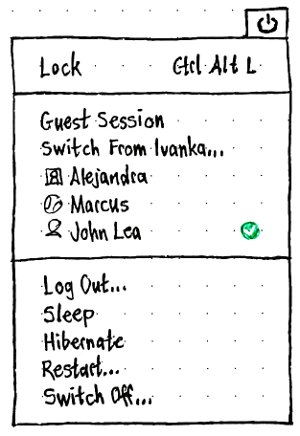
The contents of the menu should be, in order:
An item for locking the screen and/or starting the screensaver. If the gconf key “desktop/gnome/lockdown/disable_lock_screen” is true, or if the Screensaver Preferences setting “Lock screen when the screensaver is active” is unchecked, the item should be “Start Screensaver”. Otherwise, it should be “Lock”. (We deliberately do not vary this based on whether the account logs in automatically.)
- A separator.
- “Guest Session”, which switches immediately to the guest session. If the guest session is already in use, there should be a logged-in symbol at the trailing side of the menu, and its accessible name should be “Guest Session (in use)”. (We must not use a normal checkmark item for this, because that would wrongly suggest we can “turn off” the session merely by deselecting the item.) This item should always be present, but if the session you are using is already a guest one, it should be insensitive. (It is not a security risk for the item to always to be present, because you need to log in to another account before accessing it.)
User account switching items, displayed only if (a) the gconf key “desktop/gnome/lockdown/disable_user_switching” is not true, (b) account switching is supported by the video driver, and (c) there are any other user accounts:
- “Switch From {your account display name}…”, which locks your session and then displays the login screen. If your account display name is wider than 20 em, only the first characters up to 20 em should be displayed, with no extra ellipsis added to the one that is already there.
Alphabetically sorted items for up to the n user accounts (6 by default, with a gconf key for adjusting it) who were logged in to this system most recently. These items should be present only if the login screen is set to display user accounts, because the same security consideration applies. (Except in the last case, you can still switch to any account, provided you know its name, using the “Switch From…” item.) Each item should consist of:
- At its leading end, the user account icon.
The account display name, ellipsized in the middle if it is wider than 20 em. (Ideally we would use set-based ellipsis instead.) If there happen to be at least two accounts in the recent set with the same account display name, each of those should be followed by a space and then the login name in brackets, e.g. “Robert Smith (rjsmith)”. (This is the same approach used for disambiguating software items in the Ubuntu Software Center.)
- At the trailing side of the menu, a logged-in symbol if that account is currently logged in. (For the same reason as for a guest session, we must not use a normal checkmark item here.) In this case, the item should have an accessible name of the form “John Lea (logged in)”.
- A separator.
- “Log Out…”, which opens the confirmation alert for logging out. This item should not be available in the live session.
- “Sleep”, which suspends the computer to memory.
- “Hibernate”, which suspends the computer to disk.
- “Restart…”, which opens the confirmation alert for restarting the computer. If software updates that require a restart have been partially installed, this item should instead say “Restart to complete update…”, and be in the themed symbolic "warning" (in Ubuntu's case, red) color.
- “Shut Down…”, which opens the confirmation alert for shutting down.
Fading of background
When the confirmation alert for logging out, restarting, or shutting down is open, the rest of the screen should linearly take 1 second to desaturate completely.
If you click “Cancel”, or if any application interrupts session exit, the desaturation should reverse instantly.
Behavior if you confirm the logout/restart/shutdown is covered by DesktopTeam/Specs/Lucid/ShutdownAndRestartExperience.
Handling upgrades
When first running gnome-panel in a version of Ubuntu that includes the session menu, the top panel (if any) should automatically acquire the session menu at its trailing end.
Link to Gnome Control Center
A 'System Settings' link underneath the 'Shut Down...' opens the Gnome Control Center. The 'Shut Down...' and 'System Settings' links should be separated by a horizontal separator.
Future work
- Investigate visual treatments for highlighting menu items in general, so that perhaps the “Restart…” item (and the menu title) could be highlighted when updates require a restart to complete.
- Investigate whether we can have a more straightforward, but Atlantic-compatible, term for “Shut Down”. (Apparently “Switch Off” is too British while “Turn Off” is too American.)
Unresolved issues
SessionMenu (last edited 2013-12-19 13:22:44 by mpt)