UnderstandingJenkinsResults
|
Size: 4653
Comment:
|
Size: 4791
Comment:
|
| Deletions are marked like this. | Additions are marked like this. |
| Line 25: | Line 25: |
| * subscribing to a specific job's RSS feed (for all, or just failed, results) | * subscribing to a specific job's RSS feed (for all, or just failed, results) -- at the bottom of the '''Build History''' box, there are two RSS icons. Select the one you want. {{attachment:jenkins-precise-RSS.png}} |
 if this is the first time you are looking at Jenkins, you might want to read an high-level view of it.
We use Jenkins for many of our automated QA processes and tests. The public instance is located here; this is a read-only, no-login-required, mirror of our internal Jenkins instance. There you will find all current results for the tests, and a history of previous tests.
Usually you will want to look at a specific set of jobs; each job may have one single test, a sequence of tests, or a collection of other jobs. Each set is show under a tab on the Jenkins main page, and aggregates all tests related (in whatever way we decided they are related).
The tabs currently are:
All -- all jobs defined on Jenkins. You should expect it to be quite a large list, and growing as time goes by
Precise -- all jobs relating to the Ubuntu Precise Pangolin LTS development
Precise Boot Speed -- all jobs relating to the boot speed tests
Precise Daily ISOs -- all jobs relating to the daily ISO tests; these will also include the milestone testing
Precise Unity Merger -- all jobs relating to the Unity uploads (fixes, new versions, etc)
Other tabs will be added as needed.
The Test Code
The code for the tests reside on a bazaar branch; you might want to get it, if you expect to contribute to the testing effort.
Getting Notifications of Test Run Results
Currently, you can be notified of Jenkins results in either one, or both, of the following ways:
subscribing to the Jenkins mailing list
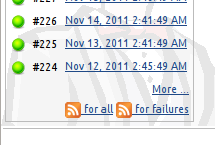
subscribing to a specific job's RSS feed (for all, or just failed, results) -- at the bottom of the Build History box, there are two RSS icons. Select the one you want.
Subscription to the mailing list will result in a email for each status change of a job (from successful to unstable to failed to unstable to successful); no emails are sent if there is no change in status from the previous run. Except for major, generic problems, we expect the ML's volume to be a few messages per day (or week).
The ML subscription is for all Jenkins jobs; on the other hand, the RSS subscription must be performed for each job you are interested it.
A Primer on Debugging Failed Job Runs -- The Console Output
Obviously, each test can fail on different points. But, on most of them, the first thing to look at is the console output. And, no, there is no way to automate checking for errors here, since there are many different ways we can have a failure.
So, for example, we can look at this failure. Clicking on the Console Output link on the left, and browsing thru the resulting list, we eventually see this:
DEBUG:root:Got IP address of 192.168.123.171 for e4284e05-7de1-4e59-a578-d588732e46c9
DEBUG:root:Capturing current d-i syslog for test case e4284e05-7de1-4e59-a578-d588732e46c9
DEBUG:root:Nov 25 10:24:33 debconf: <-- 0
Nov 25 10:24:33 debconf: --> FSET keyboard-configuration/unsupported_config_layout seen false
Nov 25 10:24:33 debconf: <-- 0 false
Nov 25 10:24:33 debconf: --> RESET keyboard-configuration/unsupported_layout
Nov 25 10:24:33 debconf: <-- 0
Nov 25 10:24:33 debconf: --> FSET keyboard-configuration/unsupported_layout seen false
Nov 25 10:24:33 debconf: <-- 0 false
Nov 25 10:24:33 debconf: --> INPUT critical keyboard-configuration/xkb-keymap
Nov 25 10:24:33 debconf: <-- 0 question will be asked
Nov 25 10:24:33 debconf: --> GO
INFO:root:Test e4284e05-7de1-4e59-a578-d588732e46c9: debian-installer reports error
Ah! The last line in the fragment above tells us that debian-installer failed. Two lines above we see "question will be asked". This is debian-installer (we run it, on all installs, in "DEBUG=developer" mode) warning us that the preseed missed an entry (or that it changed, and we did not notice, more common).
And... this is it! All that is left now is to get to the code, patch it, test the change and propose for merge 
There is a caveat: the amount of data written to the Console may vary from test to test. But you should always start with the console output
QATeam/AutomatedTesting/UnderstandingJenkinsResults (last edited 2011-12-14 14:34:40 by hggdh2)