AppleMagicTrackpad

Contents
The Magic Trackpad is a multi-touch trackpad produced by Apple Inc.
It can be used as a single-touch device in Ubuntu by pairing it using the Bluetooth utilities in Ubuntu. The following setup instructions only need to be followed once, then Ubuntu will recognize the Magic Trackpad without further configuration.
Also note the nubs on the underside of the trackpad act as the mouse button - the two rubber pieces act as such when you press *on* the device itself.
Testing
You can confirm that gestures are recognized by following the directions here:
In order to use this device with other multi-touch software, you will need to know its input device name and number.
Here is example output for lsinput with a Magic Trackpad present (other irrelevant input device removed):
$ sudo lsinput

/dev/input/event7
   bustype : BUS_BLUETOOTH
   vendor  : 0x5ac
   product : 0x30e
   version : 352
   name    : "Apple Wireless Trackpad"
   phys    : "XX:XX:XX:XX:XX:XX"
   uniq    : "XX:XX:XX:XX:XX:XX"
   bits ev : EV_SYN EV_KEY EV_REL EV_MSC
In this case the input device would be /dev/input/event7. The input device number would be 7.
For more information on testing this device for multi-touch support, see Multitouch/Testing.
Once you've confirmed the above, you can try using PyMT.
Pairing the Magic Trackpad
Using graphical tools
Once you have inserted batteries in your Magic Trackpad, if your system is Bluetooth-capable and its radio is enabled, you will see a dialog box asking for a PIN number to pair it:
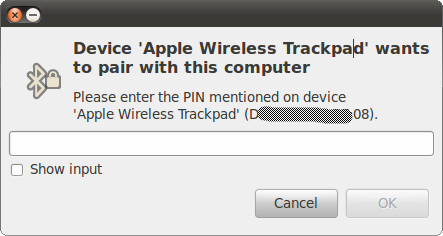
Such pairing can be forced by pressing and holding the button at the top-right side of the tablet.
You need to provide 0000 as the PIN code and press Enter to pair the trackpad. Once this has been done you need to permanently authorize this device to pair with your system. You can do so by going to the Bluetooth applet and choosing Apple Wireless Trackpad > Connect:
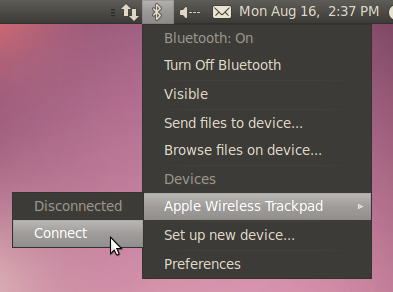
You will then be asked to confirm authorization to connect from this device. Make sure the "Always grant access" checkbox is ticked and click on Grant:
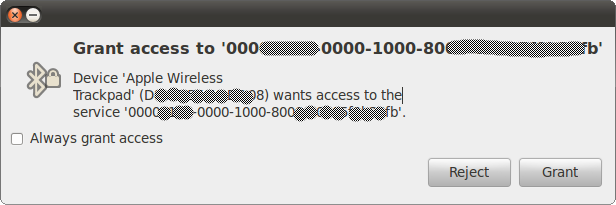
Once these steps have been completed the trackpad will remain available in Ubuntu.
If the above instructions fail, see below for manual Bluetooth pairing instructions.
Using the command line
First, verify that your Bluetooth radio is indeed on. Open a terminal window and issue the following command:
$ hcitool dev
Devices:
        hci0    XX:XX:XX:XX:XX:XX
The above example output shows what you would see if / when your Bluetooth radio is detected and enabled.
Next, let's scan for nearby Bluetooth devices. Note you must press the pairing/ON/OFF button for approximately 10 seconds on your Magic Trackpad for it to enter "pairing" mode. A small green light will start flashing.
$ hcitool scan
Scanning ...
        XX:XX:XX:XX:XX:XX       Apple Wireless Trackpad
The above output has important information. The bluez-compat package needs to be installed before requesting pairing:
$ sudo apt-get install bluez-compat
Then we can use the "XX..." string to request pairing of the trackpad:
$ sudo hidd --connect XX:XX:XX:XX:XX:XX
There should be no output after the above command, however your trackpad should now be recognized and act as a single-touch device.
Support on Ubuntu 10.04 (Lucid Lynx)
By default, it's possible to pair the Magic Trackpad and use basic mouse-like functionality with the regular left-click being available via the physical click only; tapping and scrolling will not work. As of September 8th, with the unsupported 2.6.35 (Maverick) kernel from the Ubuntu Kernel Team PPA, all expected basic functionality (two-finger scrolling, tap to click, right and middle click emulation through two and three finger taps respectively) works by using the "synaptics" X driver.
Known issues
Using Ginn for multi-touch gesture inputs
This method utlises Ginn to produce keyboard and mouse events based on multi-touch gesture events. his utilises the standard evdev driver and therfore the AppleMagicTrackpad#Synaptics style functionality method conflicts. The Ginn method will emulate the Synaptics style and provide additional functionality
- # Install Ginn
<code>
- sudo apt-add-repository ppa:utouch-team/utouch sudo apt-get install ginn
</code>
# Use the attached Ginn wishes file wishes.xml and place in /usr/share/ginn/wishes.xml # Execute: ginn
Synaptics style functionality
Add this section to /etc/X11/xorg.conf:
Section "InputClass"
         Identifier "Magic Trackpad"
         MatchUSBID "05ac:030e"
         Driver "synaptics"
EndSection
Related links
Multitouch - Ubuntu community documentation
Apple Magic Trackpad - Wikipedia entry
Apple Magic Trackpad - Apple product page
Apple Magic Trackpad and Ubuntu Lucid - How to pair the Magic Trackpad in Ubuntu 10.04 LTS