AppleMagicTrackpad
|
Size: 7840
Comment: Adjuste mgunes changes to match today's working config, added example output
|
Size: 8082
Comment: Added info about problem with lsinput
|
| Deletions are marked like this. | Additions are marked like this. |
| Line 95: | Line 95: |
| Notice how this output also shows '''/dev/input/event4''' which is needed when configuring PyMT. This information is also normally provided by lsinput but as of Sept 3. lsinput output is not consistently providing it. (bug report needed). |

The Magic Trackpad is a multi-touch trackpad produced by Apple Inc.
It can be used as a single-touch device in Ubuntu by pairing it using the Bluetooth utilities in Ubuntu. The following setup instructions only need to be followed once, then Ubuntu will recognize the Magic Trackpad without further configuration.
Also note the right and left buttons on the trackpad aas mouse buttons and are located under the device - the two rubber pieces act as such when you press *on* the device itself.
Note: This has been tested in Ubuntu Maverick (10.10) only.
Multitouch status
Support for the Magic Trackpad is not in Maverick yet. You need to add a PPA to your Ubuntu sources list in order to apt-get install it:
 $ sudo add-apt-repository ppa:utouch-team/utouch
 $ sudo apt-get update
 $ sudo apt-get install magicmouse-kernel-source
Xorg Setup
As of Maverick Beta (Sept. 3 2010) "gevdev" and "evdev" are considered obsolete for multitouch support, and "synaptics" has the required functionality for proper multi-touch support on this device. The Driver value may need to be changed to "synaptics" in the near future.
You need to pair the Magic Trackpad (see below, Pairing the Magic Trackpad) and, for the moment only, add this section to /etc/X11/xorg.conf:
Section "InputClass"
        Identifier "multitouch touchpad"
        MatchIsTouchpad "on"
#       MatchDevicePath "/dev/input/event*"
        Driver "evdev"
EndSection
Here is an example of a complete xorg.conf file:
Section "Screen"
        Identifier      "Default Screen"
        DefaultDepth    24
EndSection

Section "InputClass"
        Identifier "multitouch touchpad"
        MatchIsTouchpad "on"
#       MatchDevicePath "/dev/input/event*"

        Driver "evdev"
EndSection

Section "Module"
        Load    "glx"
EndSection

Section "Device"
        Identifier      "Default Device"
EndSection

Section "ServerFlags"
        Option  "IgnoreABI"     "True"
EndSection
An very basic xorg.conf file can be generated to match your configuration by booting in recovery mode and executing:
# X -configure
Once you've made such changes you can restart X (using Ctrl-Alt-Backspace if you have enabled such shortcut in System > Preferences > Keyboard > Layout > Options > Key sequence to kill the X Server) or reboot the system.
In a terminal window you can use the following command to see if the appropriate driver has activated the Magic Trackpad:
tail -f -n 30 /var/log/Xorg.0.log
Here is example output of successful configuration:
[   608.000] (II) config/udev: Adding input device Apple Wireless Trackpad (/dev/input/event4)
[   608.000] (**) Apple Wireless Trackpad: Applying InputClass "evdev touchpad catchall"
[   608.001] (**) Apple Wireless Trackpad: Applying InputClass "touchpad catchall"
[   608.001] (**) Apple Wireless Trackpad: Applying InputClass "multitouch touchpad"
[   608.001] (**) Apple Wireless Trackpad: always reports core events
[   608.001] (**) Apple Wireless Trackpad: Device: "/dev/input/event4"
[   608.040] (II) Apple Wireless Trackpad: Found 1 mouse buttons
[   608.040] (II) Apple Wireless Trackpad: Found absolute axes
[   608.040] (II) Apple Wireless Trackpad: Found x and y absolute axes
[   608.040] (II) Apple Wireless Trackpad: Found absolute touchpad.
[   608.040] (II) Apple Wireless Trackpad: Configuring as touchpad
[   608.040] (**) Apple Wireless Trackpad: YAxisMapping: buttons 4 and 5
[   608.041] (**) Apple Wireless Trackpad: EmulateWheelButton: 4, EmulateWheelInertia: 10, EmulateWheelTimeout: 200
[   608.041] (II) XINPUT: Adding extended input device "Apple Wireless Trackpad" (type: TOUCHPAD)
[   608.041] (II) Apple Wireless Trackpad: initialized for absolute axes.
Notice how this output also shows /dev/input/event4 which is needed when configuring PyMT. This information is also normally provided by lsinput but as of Sept 3. lsinput output is not consistently providing it. (bug report needed).
Once Magic Trackpad support has landed, you hopefully won't need to edit your xorg.conf anymore.
Testing
You can confirm that gestures are recognized by following the directions here:
In order to use this device with other multi-touch software, you will need to know its input device name and number.
Here is example output for lsinput with a Magic Trackpad present (other irrelevant input device removed):
$ sudo lsinput

/dev/input/event7
   bustype : BUS_BLUETOOTH
   vendor  : 0x5ac
   product : 0x30e
   version : 352
   name    : "Apple Wireless Trackpad"
   phys    : "XX:XX:XX:XX:XX:XX"
   uniq    : "XX:XX:XX:XX:XX:XX"
   bits ev : EV_SYN EV_KEY EV_REL EV_MSC
In this case the input device would be /dev/input/event7. The input device number would be 7.
For more information on testing this device for multi-touch support, see Multitouch/Testing.
Once you've confirmed the above, you can try using PyMT.
Pairing the Magic Trackpad
Using graphical tools
Once you have inserted batteries in your Magic Trackpad, if your system is Bluetooth-capable and its radio is enabled, you will see a dialog box asking for a PIN number to pair it:
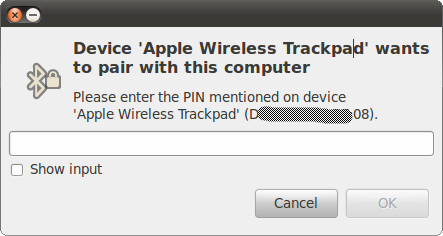
Such pairing can be forced by pressing and holding the button at the top-right side of the tablet.
You need to provide 0000 as the PIN code and press Enter to pair the trackpad. Once this has been done you need to permanently authorize this device to pair with your system. You can do so by going to the Bluetooth applet and choosing Apple Wireless Trackpad > Connect:
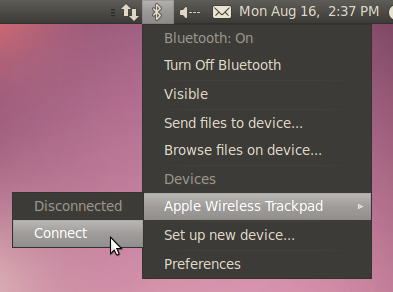
You will then be asked to confirm authorization to connect from this device. Make sure the "Always grant access" checkbox is ticked and click on Grant:
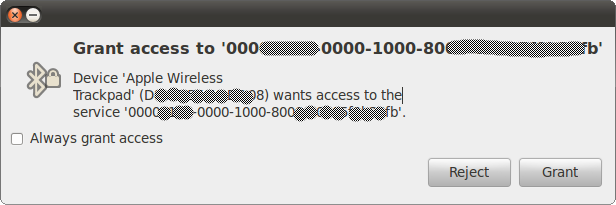
Once these steps have been completed the trackpad will remain available in Ubuntu.
If the above instructions fail, see below for manual Bluetooth pairing instructions.
Using the command line
First, verify that your Bluetooth radio is indeed on. Open a terminal window and issue the following command:
$ hcitool dev
Devices:
        hci0    XX:XX:XX:XX:XX:XX
The above example output shows what you would see if / when your Bluetooth radio is detected and enabled.
Next, let's scan for nearby Bluetooth devices. Note you must press the pairing/ON/OFF button for approximately 10 seconds on your Magic Trackpad for it to enter "pairing" mode. A small green light will start flashing.
$ hcitool scan
Scanning ...
        XX:XX:XX:XX:XX:XX       Apple Wireless Trackpad
The above output has important information. The bluez-compat package needs to be installed before requesting pairing:
$ sudo apt-get install bluez-compat
Then we can use the "XX..." string to request pairing of the trackpad:
$ sudo hidd --connect XX:XX:XX:XX:XX:XX
There should be no output after the above command, however your trackpad should now be recognized and act as a single-touch device.
Known issues
Related links
Multitouch - Ubuntu community documentation
Apple Magic Trackpad - Wikipedia entry
Apple Magic Trackpad - Apple product page
Apple Magic Trackpad and Ubuntu Lucid - How to pair the Magic Trackpad in Ubuntu 10.04 LTS
Multitouch/AppleMagicTrackpad (last edited 2013-10-21 16:13:22 by host86-136-125-87)