AppleMagicMouse
|
Size: 2430
Comment: Draft, no screenshots
|
Size: 3200
Comment: first version
|
| Deletions are marked like this. | Additions are marked like this. |
| Line 9: | Line 9: |
| == Pairing the Magic Mouse == Once you have inserted batteries in your Magic Mouse, if your system is Bluetooth-capable and its radio is enabled, go to '''System > Preferences > Bluetooth''' and click on '''Setup new device...'''. Once the Bluetooth setup dialog opens, you should see you mouse listed. Click once on it, then choose "PIN options..". Make sure "0000" is selected under "Fixed PIN": {{attachment:Screenshot-Mouse1.png}} Clicking '''Forward''' should then complete the pairing, which Ubuntu will remember. The Magic Mouse can be forced in pairing mode by turning it off and on again (the "on" position will show green color in the switch position). Once the device has been connected once or moved from another system, you can force pairing again by going to the Bluetooth applet and choosing '''Apple Wireless Mouse > Connect''' (if a PIN is asked, you can provide '''0000''' as the PIN code and press '''Enter''' to pair the mouse): {{attachment:Screenshot-1.png}} Once these steps have been completed the mouse will remain available in Ubuntu. |
|
| Line 10: | Line 25: |
| Here is example output for lsinput with a Magic Trackpad present (other irrelevant input device removed): | === Finding your input device === Once your mouse has been paired, the '''hid_magicmouse''' module should automatically load. To verify this, issue the following command from a terminal: {{{ $ lsmod | grep magic hid_magicmouse 5958 0 hid 67710 3 hid_magicmouse,hidp,usbhid }}} Here is example output for lsinput with a Magic Mouse present (other irrelevant input device removed): |
| Line 18: | Line 42: |
| product : 0x30e version : 352 name : "Apple Wireless Trackpad" |
product : 0x30d version : 132 name : "Apple Wireless Mouse" |
| Line 22: | Line 46: |
| uniq : "D8:A2:5E:F6:BE:08" bits ev : EV_SYN EV_KEY EV_REL EV_MSC |
uniq : "D8:30:62:45:54:68" bits ev : EV_SYN EV_KEY EV_REL EV_ABS |
| Line 31: | Line 55: |
| == Pairing the Magic Mouse == Once you have inserted batteries in your Magic Mouse, if your system is Bluetooth-capable and its radio is enabled, go to '''System > Preferences > Bluetooth''' and click on '''Setup new device...'''. Once the Bluetooth setup dialog opens, you should see you mouse listed. Click once on it, then choose "PIN options..". Make sure "0000" is selected under "Fixed PIN": ** Clicking '''Forward''' should then complete the pairing, which Ubuntu will remember. The Magic Mouse can be forced in pairing mode by turning it off and on again (the "on" position will show green color in the switch position). If a PIN is asked, you can to provide '''0000''' as the PIN code and press '''Enter''' to pair the mouse. You can do so by going to the Bluetooth applet and choosing '''Apple Wireless Mouse > Connect''': {{attachment:Screenshot.png}} Once these steps have been completed the mouse will remain available in Ubuntu. |
=== Installing PyMT and configuring it === To experiment multi-touch capabilities of the Apple Magic Mouse, you can try using PyMT, an open source library for developing multi-touch applications. You will need the device name as ound aboce (in this example, ''/dev/input/event7''). See the [[PyMT|Ubuntu PyMT documentation]] for this. |

The Magic Mouse is a multi-touch mouse produced by Apple Inc.
It can be used as a single-touch or multi-touch device in Ubuntu by pairing it using the Bluetooth utilities in Ubuntu. The following setup instructions only need to be followed once, then Ubuntu will recognize the Magic Mouse without further configuration.
Note: This has been tested in Ubuntu Maverick (10.10) only.
Pairing the Magic Mouse
Once you have inserted batteries in your Magic Mouse, if your system is Bluetooth-capable and its radio is enabled, go to System > Preferences > Bluetooth and click on Setup new device.... Once the Bluetooth setup dialog opens, you should see you mouse listed. Click once on it, then choose "PIN options..". Make sure "0000" is selected under "Fixed PIN":
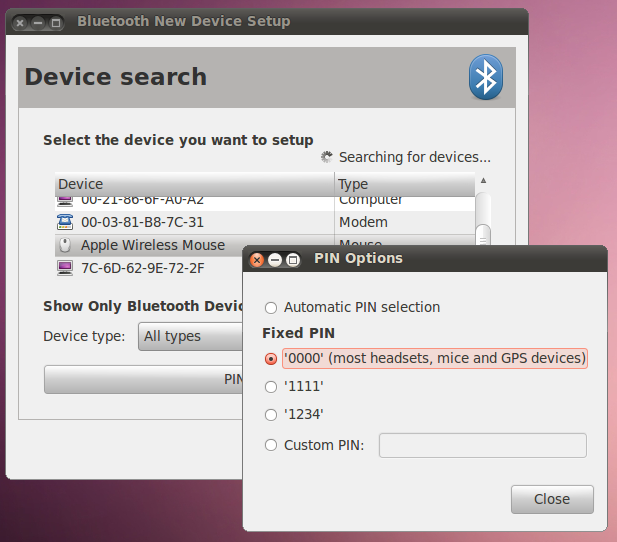
Clicking Forward should then complete the pairing, which Ubuntu will remember.
The Magic Mouse can be forced in pairing mode by turning it off and on again (the "on" position will show green color in the switch position).
Once the device has been connected once or moved from another system, you can force pairing again by going to the Bluetooth applet and choosing Apple Wireless Mouse > Connect (if a PIN is asked, you can provide 0000 as the PIN code and press Enter to pair the mouse):

Once these steps have been completed the mouse will remain available in Ubuntu.
Multitouch status
Finding your input device
Once your mouse has been paired, the hid_magicmouse module should automatically load. To verify this, issue the following command from a terminal:
$ lsmod | grep magic
hid_magicmouse          5958  0
hid                    67710  3 hid_magicmouse,hidp,usbhid
Here is example output for lsinput with a Magic Mouse present (other irrelevant input device removed):
$ sudo lsinput

/dev/input/event7
   bustype : BUS_BLUETOOTH
   vendor  : 0x5ac
   product : 0x30d
   version : 132
   name    : "Apple Wireless Mouse"
   phys    : "00:0F:3D:3D:7C:5C"
   uniq    : "D8:30:62:45:54:68"
   bits ev : EV_SYN EV_KEY EV_REL EV_ABS
In this case the input device would be /dev/input/event7. The input device number would be 7.
For more information on testing this device for multi-touch support, see Multitouch/Testing.
Installing PyMT and configuring it
To experiment multi-touch capabilities of the Apple Magic Mouse, you can try using PyMT, an open source library for developing multi-touch applications. You will need the device name as ound aboce (in this example, /dev/input/event7). See the Ubuntu PyMT documentation for this.
Related links
Multitouch - Ubuntu community documentation
http://en.wikipedia.org/wiki/Magic_Mouse - Wikipedia entry
http://www.apple.com/magicmouse/ - Apple product page
Multitouch/AppleMagicMouse (last edited 2013-04-24 12:53:34 by pittsford-216-226-127-122)