Reporting
|
Size: 6923
Comment: Adding -dbg package chart
|
Size: 6935
Comment: bold headings for -dbg package table
|
| Deletions are marked like this. | Additions are marked like this. |
| Line 21: | Line 21: |
| || Application that crashed || Debugging packages || | || '''Application that crashed''' || '''Debugging packages''' || |
|
Kubuntu |
|
|
Headquarters |
|
Organization |
|
Development |


Join us in the #kubuntu chat room for support or the #kubuntu-devel chat room for development |
Introduction
Kubuntu uses Launchpad to keep track of bugs and their fixes. To file a bug you first need to create an account. For the desktop environment and most applications, the KDE Bug Tracker is also used. Reporting bugs there will get them closer to the actual developer of the application, but be wary of bugs that may be specific to Kubuntu. If you aren't sure, please file bugs in Launchpad first.
Reporting bugs
Crashes
KDE Applications
When a KDE application crashes, you will get a crash dialog:
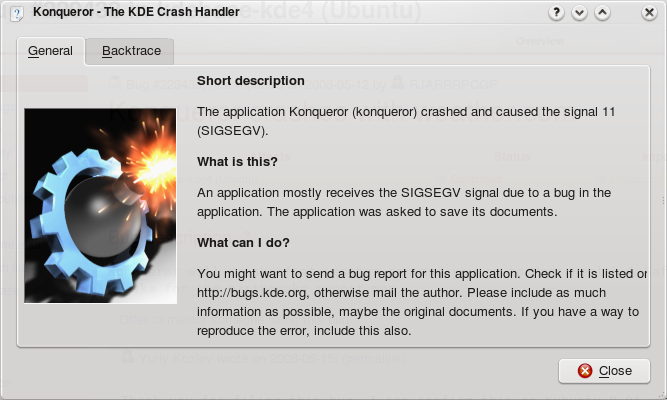
Click on the backtrace tab. If there are just a bunch of lines saying (no debugging symbols found), or if it says that it could not generate a backtrace, unfortunately this crash report isn't very useful. You can still report it, but you'll likely be asked for more information. See the debugging page for more information. If the backtrace tab does contain information, click Save As... and save the .kcrash file somewhere. Then see Filing bugs at launchpad.net to report the bug.
Debugging Packages
For a good backtrace (3 stars) you will need, at the minimum, to have kdebase-runtime-dbg and kdelibs5-dbg installed. For specific applications:
Application that crashed |
Debugging packages |
Plasma |
kdebase-workspace-dbg |
Kontact / KMail / KOrganizer / KAddressBook |
kdepim-dbg and kdepimlibs-dbg |
Non-KDE Applications
The easiest and most effective way to report a bug is with the Apport application. When an application crashes, apport automatically records information about the crash and the system. Apport is disabled by default, to enable it, edit the file /etc/default/apport to say enabled=1 instead of enabled=0. Then, if the crash happens once apport is enabled, a .crash file will be created in /var/crash that you can use to file a report using this command:
apport-cli -c /var/crash/crashfile.crash
This will take you to the Launchpad website where you can enter details about the crash, and debugging information will be attached automatically. This procedure will provide our developers with rich debugging information that will make it easier for them to fix the problem.
User Interface Bugs and Incorrect Functionality
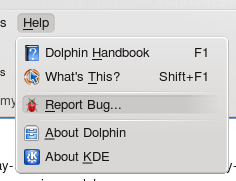
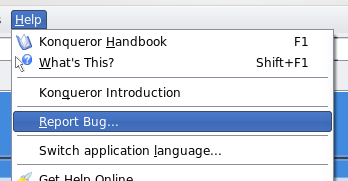
If you want to report a bug on an application that is running and responding, you can file it in the KDE bug tracker from the Help menu via Help -> Report Bug.... This method is preferable than filing a bug directly at the website because of the debugging information it attaches, even for user interface bugs.
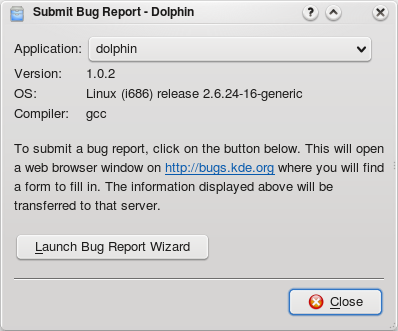
Clicking the Launch Bug Report Wizard button will take you to the bugs.kde.org website where you can fill in the details about the bug.
Filing from the command line
You can also file a bug about a package or running program in Launchpad using the command line, like this:
apport-cli -f -p PACKAGE
Lets you file a bug against a known package and automatically include all the useful debug information. Use
apport-cli -f -P PID
If you want to file against a running program with a known Process ID (PID) (see KMenu -> System -> Performance Monitor (KSysGuard)).
Filing bugs at Launchpad.net
If for some reason you cannot file a bug through the Apport tool you can file one via Launchpad (Apport is not available on version 6.10 and older). When doing so please ensure that you have determined which package it should be filed against. Read 'choosing the right package' for guidance.
Writing a useful report
Fill in the description field with as much information as you can, including the release of Kubuntu you are using and steps for someone else to recreate the bug. It is better to have too much information in the description than not enough.
Only describe a single problem per bug report so that each can be followed up on in detail. If you experience several issues file separate reports.
Add supporting attachments to explain or help others reproduce your bug. This might include a screen shot or video capture of the problem or a sample document that triggers the fault.
You can only add attachments after the bug has been filed with a title and description. Use the Add a comment/attachment at the bottom of the page.
For anything hardware related, give precise details about your hardware. Attaching the output of "lspci -vvnn" and "dmesg", after a fresh boot, will help a lot.
Choosing the right package
Usually you can find the right package in Launchpad by searching for the application. There is a lot of information about choosing a package at FindRightPackage. Here are some other useful guidelines for KDE components:
System Settings lives in kdebase-workspace, though is just the shell that gives you icons for the various settings modules. If you want to file a bug about a settings module, it should probably be against one of kdebase kdeadmin, or kdenetwork. Specifically:
knetworkconf, the manual network configuration module, is in kdeadmin
The filesharing module is in kdenetwork
Most others are in kdebase
Konqueror, Kate, and Konsole (and more) are in kdebase
Krunner, klipper, kscreensaver, ksysguard, kwin, and systemsettings are in kdebase-workspace
Knotify, kio slaves are in kdebase-runtime
Ark is in kdeutils.
If you have an issue consistent for all KDE applications, such as not being able to launch them, the problem is likely in kdelibs
For definitive information on what KDE module an application is in, see KDE SVN for KDE 3.5 and for KDE 4.0.
When not to file a bug
Support requests should go to support requests in launchpad, the Ubuntu forums, the #kubuntu channel on the Freenode IRC server, or the kubuntu-users mailing list.
Feature and policy discussions (including suggestions to change defaults) should be discussed on the kubuntu-devel mailing list.
Development ideas should be posted to http://brainstorm.ubuntu.com/ or discussed on the kubuntu-devel mailing list.
Already filed - Please check if it has already been reported by searching through the existing bugs. If you have further information about an already reported bug, add this information to the existing reported bug, instead of opening a new one.
Getting advice
If you need help in finding the right package or providing appropriate information ask someone on #ubuntu-bugs on the Freenode IRC server or on the bugsquad mailing list.
Further reading
See this guide for general information on writing a good bug report. If you need help with debugging a problem, see DebuggingProcedures and DebuggingKDE.
Kubuntu/Bugs/Reporting (last edited 2014-05-08 13:13:59 by 178-191-0-83)