BasicTroubleshooting
|
Size: 4018
Comment:
|
← Revision 16 as of 2008-08-06 17:01:10 ⇥
Size: 6476
Comment:
|
| Deletions are marked like this. | Additions are marked like this. |
| Line 1: | Line 1: |
| = Where to start when things don't work? = | ||<tablestyle="float:right; font-size: 0.9em; width:40%; background:#F1F1ED; margin: 0 0 1em 1em;" style="padding:0.5em;"><<TableOfContents(2)>>|| |
| Line 3: | Line 3: |
| [Note: I consider myself to be a Linux newbie. The information on this page is incomplete, and some may even be wrong. But I have learned a few things that I could not find back in the Wiki. Following is an overview of this.] | == Where to start when things don't work? == |
| Line 5: | Line 5: |
| Starting to find your way in Linux can be a frustrating thing when applications and hardware don't seem to work as they should. Linux has many ways to troubleshoot problems, but they may be different from what you are used to with other operating systems. | The suggestions here are from a newcomers perspective. This is not an advanced user's troubleshooting guide. It aims to offer a simple means of troubleshooting that can provide useful information when seeking help through the UbuntuForums or by using Google to search error messages. |
| Line 7: | Line 7: |
| This page tries to help you pinpoint the cause of trouble, and point you to places where you might get help solving the problem. Troubleshooting information on this page is of general nature, that means it shows general techniques that can be used in (almost) all situations, and it shows things you can do when you really don't know what a problem is related to. More specific information, that is clearly related to a piece of software or hardware, should be looked for on their respective pages. | Finding your way in Linux can be frustrating when applications and hardware do not seem to work as they should. Linux has many methods for troubleshooting problems, but the methods may seem foreign to someone migrating from another operating system. |
| Line 9: | Line 9: |
| = Pinpointing causes = | This page tries to help you pinpoint the cause of trouble, and point you to places where you might get help solving any problems. Troubleshooting information on this page is of a basic nature. That means it shows beginner techniques that can be used in "almost" all situations, and it suggests some techniques for finding the causes of some problems. |
| Line 11: | Line 11: |
| == Run from terminal == | |
| Line 13: | Line 12: |
| While Windows programs generally display a dialog box in case of an error, the Linux standard way to display error messages is through the ''stderror'' device. Running an application from the Gnome menu you won't see much, but running it from a terminal window you will see the error messages in the terminal window. Try to see if you can find errors telling you that some component is missing or malfunctioning. | == Run in a Terminal == |
| Line 15: | Line 14: |
| You can find Terminal under Applications > Accessories > Terminal. More information on Terminal can be found in TerminalHowto and TerminalAdvanced. | While Windows programs generally display a dialog box in case of an error, the Linux standard way to display error messages is through the ''stderror'' device. Running an application from the Gnome menu, you won't see much if an error occurs, but running the same application from a terminal window, you will see the error messages (if there are any) in the terminal window. Try to see if you can find errors telling you that some component is missing or malfunctioning. To run a program from the terminal, you must first know the application command. |
| Line 17: | Line 16: |
| Most applications can be run straight from Terminal by typing their command name. Most of the time, this is ''not'' the application name you will see in the Gnome menu. There are several ways to find the command name that is associated to an application in the menu: * Applications Menu Editor (located in Applications > System Tools), only for items on the Applications menu. Open the Menu Editor, select the appropriate category in the left pane, find your application in the right pane, and double-click the application name. You should now get a dialog that shows the associated command name. * Synaptic Package Manager (located in System > Administration). Use the search function to locate the package that the malfunctioning application belongs to. Installed packages show a green square. Hightlight the package that the application belongs to, right-click, and choose Properties. Then go to the Installed Files tab. Entries that start with "/usr/bin/" are commonly commands that can be executed from the Terminal. * Execute "ls /usr/bin/" from Terminal, this will show you most application command names on your system. |
== Application Commands == You can find the Terminal under '''Applications > Accessories > Terminal'''. More information on the Terminal can be found in TerminalHowto and TerminalAdvanced. ||<tablestyle="float:right" style="border:none">{{attachment:mainmenu.png}}|| Most applications can be run straight from the Terminal by typing their command names. Sometimes this is the application name you will see in the '''Applications''' menu. However, Linux is ''case sensitive'', so entering capital letters to run commands will likely fail. There are several ways to find the command name that is associated with an application in the menu. The Main Menu contains a list of available (installed) applications. The Main Menu is configurable to display more or fewer applications. Navigate to '''System > Preferences > Main Menu''', and select an application from the menu on the left, for example, "Office." Then a list of applications will open on the right side of the window. The checked items are ones that display as options when you open the '''Applications''' menu from the panel icon. Checking more items will make more items available from the '''Applications''' menu on the panel. Select one with a '''right''' mouse click, and choose the properties dialog. ||<tablestyle="float:right" style="border:none">{{attachment:launcher.png}}|| From the properties dialog window, the '''command''' can be seen in the "command field" of the dialog window. This is the command the can be entered into the Terminal window. In the example here, "ooffice -impress" is the command. If you were to use the %U flag, you would be warned if you did not have any presentation documents in your home directory. ||<tablestyle="float:right" style="border:none">{{attachment:ohedwig.png}}|| Finally, in this case, the application is launched with no error reported. ||<tablestyle="float:right" style="border:none">{{attachment:jim.png}}|| The terminal will continue to keep track of the program as long as it is running. This can be useful for determining where and why a program fails. <<BR>> == Synaptic Package Manager == Synaptic Package Manager '''System > Administration > Synaptic Package Manager'''. Use the search function to locate the application's package name. Installed packages show a green square. Highlight the package containing the application. Right-click, and choose Properties. Then go to the Installed Files tab. Entries that start with {{{/usr/bin/}}} are commonly commands that can be executed from the Terminal. If the package name is added to {{{/usr/bin/example}}} the program will likely launch. Run the command: {{{ls /usr/bin/}}} from Terminal. This will show you most application's command names on your system. |
| Line 24: | Line 51: |
| Some problems are connected to the user-settings. Trying to run them as another user may help you pinpoint this. Go to System > Administration > Users and Groups, and create a new user. If your problem involves running admin tasks, be sure to go to the User Privileges tab and check "Executing system administration tasks". Now, log off and log in as your newly created user, and check if your problem still persists. | Some problems are connected to the user-settings. Try to run a program as another user. Go to '''System > Administration > Users and Groups''', and create a new user. Be sure to go to the '''User Privileges''' tab and check '''Administer the system.''' Now, log off and log in as your newly created user. '''Ctrl+Alt+Backspace''' can be used for this, but some motherboards interpret this as '''Ctrl+Alt+Del''', which kills all processes without confirmation. If you discover an improper shut-down, cease to use {{{ctrl+alt+backspace}}} for switching users. Use the system restart instead, or the {{{su example}}} terminal command. See if your problem persists. Even though the new user has been assigned administrator privileges, he/she may will {{{sudo}}} before the command. The terminal bash prompt will warn you, in this case, to use {{{sudo command}}}. The example shown here, ends with a permissions error regarding jim's access to xserver. It turns out "jim" did not have administrator privileges (under the user privileges tab mentioned previously) and {{{sudo ooffice}}} was not used as the command. "Sudo" is required in this case because "jim" was not logged-in. The switch user command was issued. A reboot or log out log in procedure would have avoided the error. Alternatively, the bash prompt suggests reading {{{man xhost}}} a command to display the manual pages that will describe how to set up display access for other users not logged-in. This is a security feature. |
| Line 26: | Line 53: |
| = Getting help = | == Getting help == |
| Line 28: | Line 55: |
| Equiped with the information you gathered in the pinpointing chapter, you can now help others help you. Enter the forums to ask about your problems, giving the collected information. Or use a web search engine to search for the error messages you've gotten. Lots of links can be found under HowToGetHelp. | Equipped with the information you gathered in the pinpointing chapter, you can now help others help you. Enter the forums to ask about your problems, giving the collected information. Or use a web search engine to search for the error messages you've gotten. Lots of links can be found under HowToGetHelp. |
| Line 30: | Line 57: |
| = General solutions = * As hard as it may sound, your best solution might be to reformat your Linux partition and start over with a clean install. As a new user, you tend to install many different applications to try stuff out. You may have installed an incompatible set of applications, our you may have made a mistake configuring some application. When problems are very hard to pinpoint, a reformat may be your best and quickest solution. |
Use the Ubuntu Forums: [[http://ubuntuforums.org/index.php|UbuntuForums]] The Absolute Beginners Talk and General Help forums are one of the communities best resources. |
Where to start when things don't work?
The suggestions here are from a newcomers perspective. This is not an advanced user's troubleshooting guide. It aims to offer a simple means of troubleshooting that can provide useful information when seeking help through the UbuntuForums or by using Google to search error messages.
Finding your way in Linux can be frustrating when applications and hardware do not seem to work as they should. Linux has many methods for troubleshooting problems, but the methods may seem foreign to someone migrating from another operating system.
This page tries to help you pinpoint the cause of trouble, and point you to places where you might get help solving any problems. Troubleshooting information on this page is of a basic nature. That means it shows beginner techniques that can be used in "almost" all situations, and it suggests some techniques for finding the causes of some problems.
Run in a Terminal
While Windows programs generally display a dialog box in case of an error, the Linux standard way to display error messages is through the stderror device. Running an application from the Gnome menu, you won't see much if an error occurs, but running the same application from a terminal window, you will see the error messages (if there are any) in the terminal window. Try to see if you can find errors telling you that some component is missing or malfunctioning. To run a program from the terminal, you must first know the application command.
Application Commands
You can find the Terminal under Applications > Accessories > Terminal. More information on the Terminal can be found in TerminalHowto and TerminalAdvanced.
|
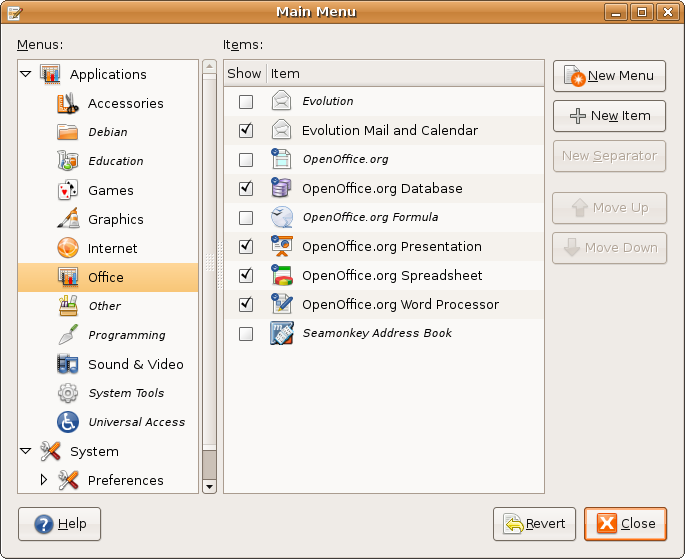
Most applications can be run straight from the Terminal by typing their command names. Sometimes this is the application name you will see in the Applications menu. However, Linux is case sensitive, so entering capital letters to run commands will likely fail. There are several ways to find the command name that is associated with an application in the menu.
The Main Menu contains a list of available (installed) applications. The Main Menu is configurable to display more or fewer applications. Navigate to System > Preferences > Main Menu, and select an application from the menu on the left, for example, "Office."
Then a list of applications will open on the right side of the window. The checked items are ones that display as options when you open the Applications menu from the panel icon. Checking more items will make more items available from the Applications menu on the panel. Select one with a right mouse click, and choose the properties dialog.
|
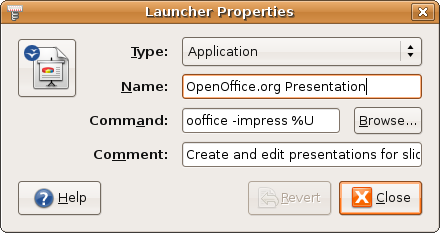
From the properties dialog window, the command can be seen in the "command field" of the dialog window. This is the command the can be entered into the Terminal window. In the example here, "ooffice -impress" is the command. If you were to use the %U flag, you would be warned if you did not have any presentation documents in your home directory.
|
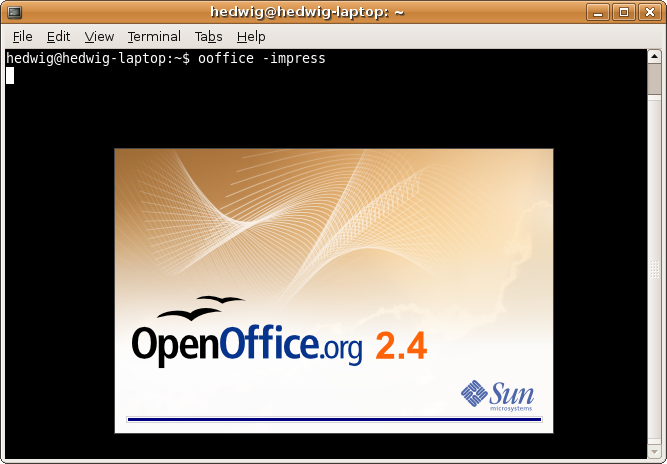
Finally, in this case, the application is launched with no error reported.
|
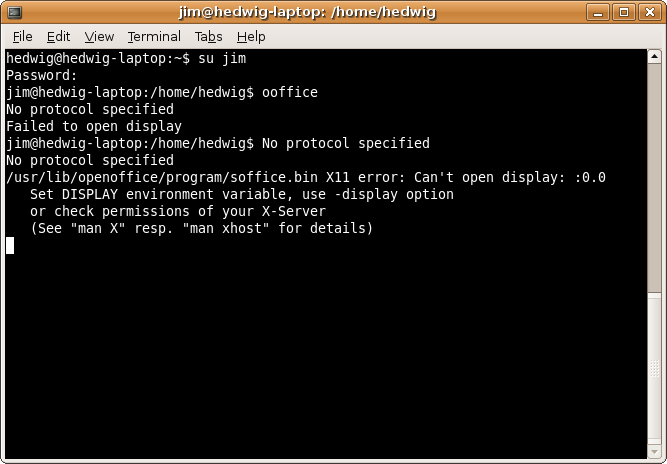
The terminal will continue to keep track of the program as long as it is running. This can be useful for determining where and why a program fails.
Synaptic Package Manager
Synaptic Package Manager System > Administration > Synaptic Package Manager. Use the search function to locate the application's package name. Installed packages show a green square. Highlight the package containing the application. Right-click, and choose Properties. Then go to the Installed Files tab. Entries that start with /usr/bin/ are commonly commands that can be executed from the Terminal. If the package name is added to /usr/bin/example the program will likely launch.
Run the command: ls /usr/bin/ from Terminal. This will show you most application's command names on your system.
Run as another user
Some problems are connected to the user-settings. Try to run a program as another user. Go to System > Administration > Users and Groups, and create a new user. Be sure to go to the User Privileges tab and check Administer the system. Now, log off and log in as your newly created user. Ctrl+Alt+Backspace can be used for this, but some motherboards interpret this as Ctrl+Alt+Del, which kills all processes without confirmation. If you discover an improper shut-down, cease to use ctrl+alt+backspace for switching users. Use the system restart instead, or the su example terminal command. See if your problem persists. Even though the new user has been assigned administrator privileges, he/she may will sudo before the command. The terminal bash prompt will warn you, in this case, to use sudo command. The example shown here, ends with a permissions error regarding jim's access to xserver. It turns out "jim" did not have administrator privileges (under the user privileges tab mentioned previously) and sudo ooffice was not used as the command. "Sudo" is required in this case because "jim" was not logged-in. The switch user command was issued. A reboot or log out log in procedure would have avoided the error. Alternatively, the bash prompt suggests reading man xhost a command to display the manual pages that will describe how to set up display access for other users not logged-in. This is a security feature.
Getting help
Equipped with the information you gathered in the pinpointing chapter, you can now help others help you. Enter the forums to ask about your problems, giving the collected information. Or use a web search engine to search for the error messages you've gotten. Lots of links can be found under HowToGetHelp.
Use the Ubuntu Forums: UbuntuForums The Absolute Beginners Talk and General Help forums are one of the communities best resources.
BasicTroubleshooting (last edited 2008-08-06 17:01:10 by localhost)